Pocket2 Connection Guide
The scanner runs its own Wi-Fi access point, and the phone joins that — not the other way round. For the length of a session the phone is on the scanner's network and nowhere else.
Turn off VPNs, proxies and automatic Wi-Fi switching before you start.
Before you start
- Install MindCloud Go on the phone or tablet you will actually carry. Android and iOS are both supported.
- Power the scanner on — hold the power button on the handle battery for three seconds and wait for the indicator LEDs.
- Decide which phone is driving the session, and stick to it. Only one phone can hold a connection to the scanner, and the phone that starts a scan is the one that has to stop it.
Joining the scanner's network
Open the phone's Wi-Fi settings. The scanner appears as its own network:
| Network name | MindPalace-xxxx — the trailing characters differ per unit |
| Password | 1234567890 |
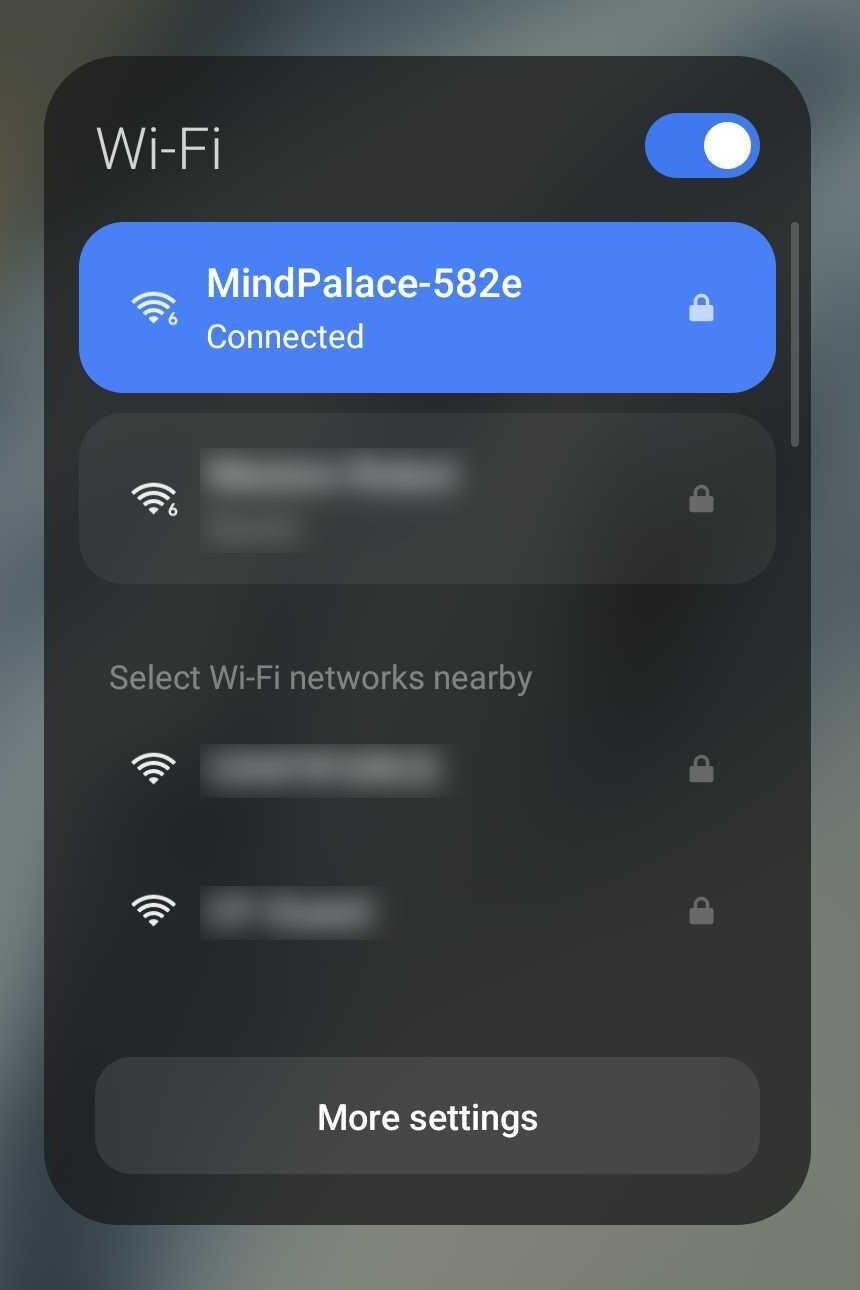
Join it, then return to MindCloud Go.
The scanner's access point is not a route to the internet, so the phone flags it as unusable and — depending on the make — offers to switch back to a network that works. Do not let it.
Connecting the app to the scanner
Open MindCloud Go's Home page. The device card carries the scanner's model, firmware version and serial number, a storage gauge and a row of sensor indicators — plus, while the phone has joined the Wi-Fi but the app has not yet attached to the device, a red Disconnected badge.
Turn on the Connect Device toggle.
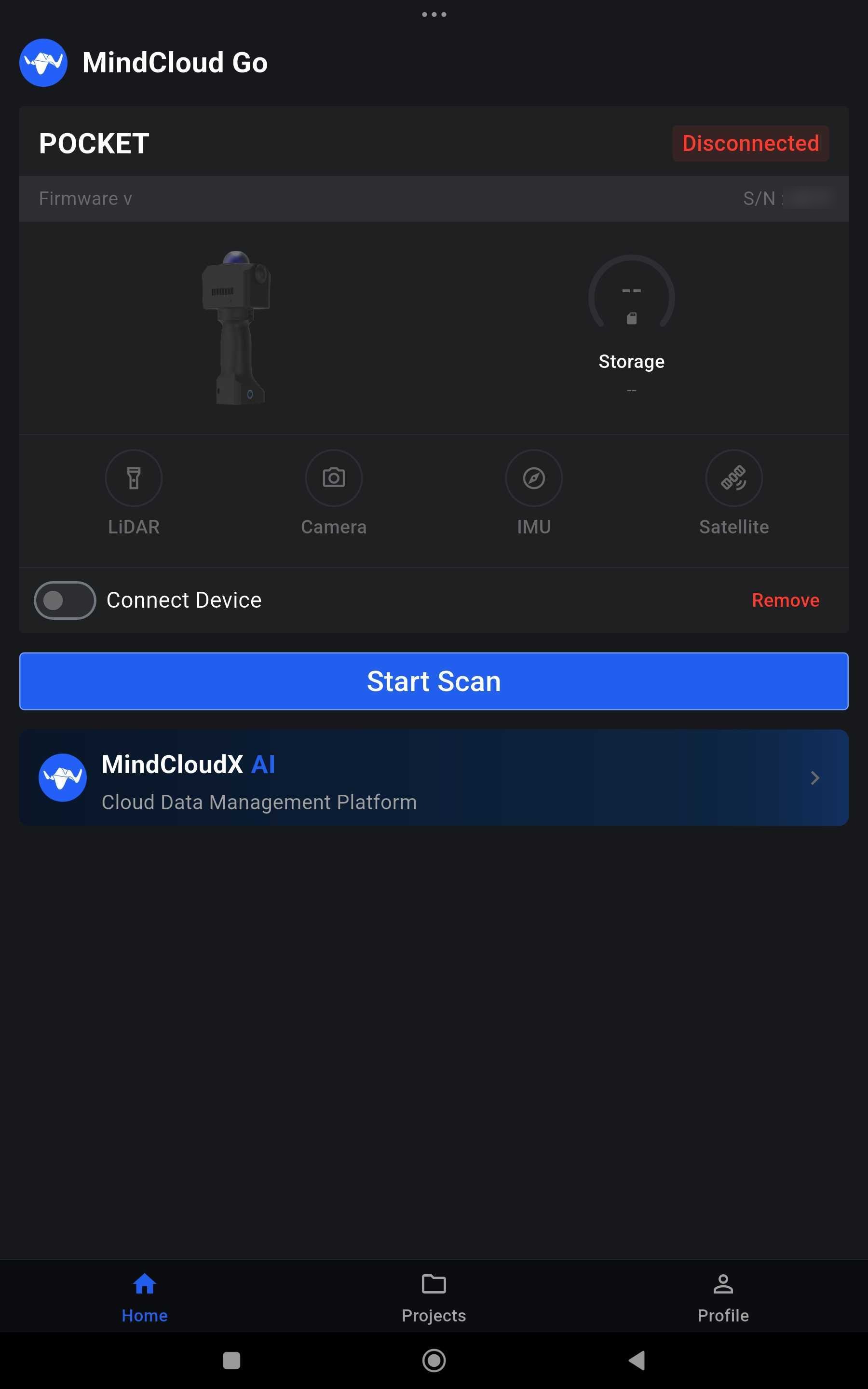
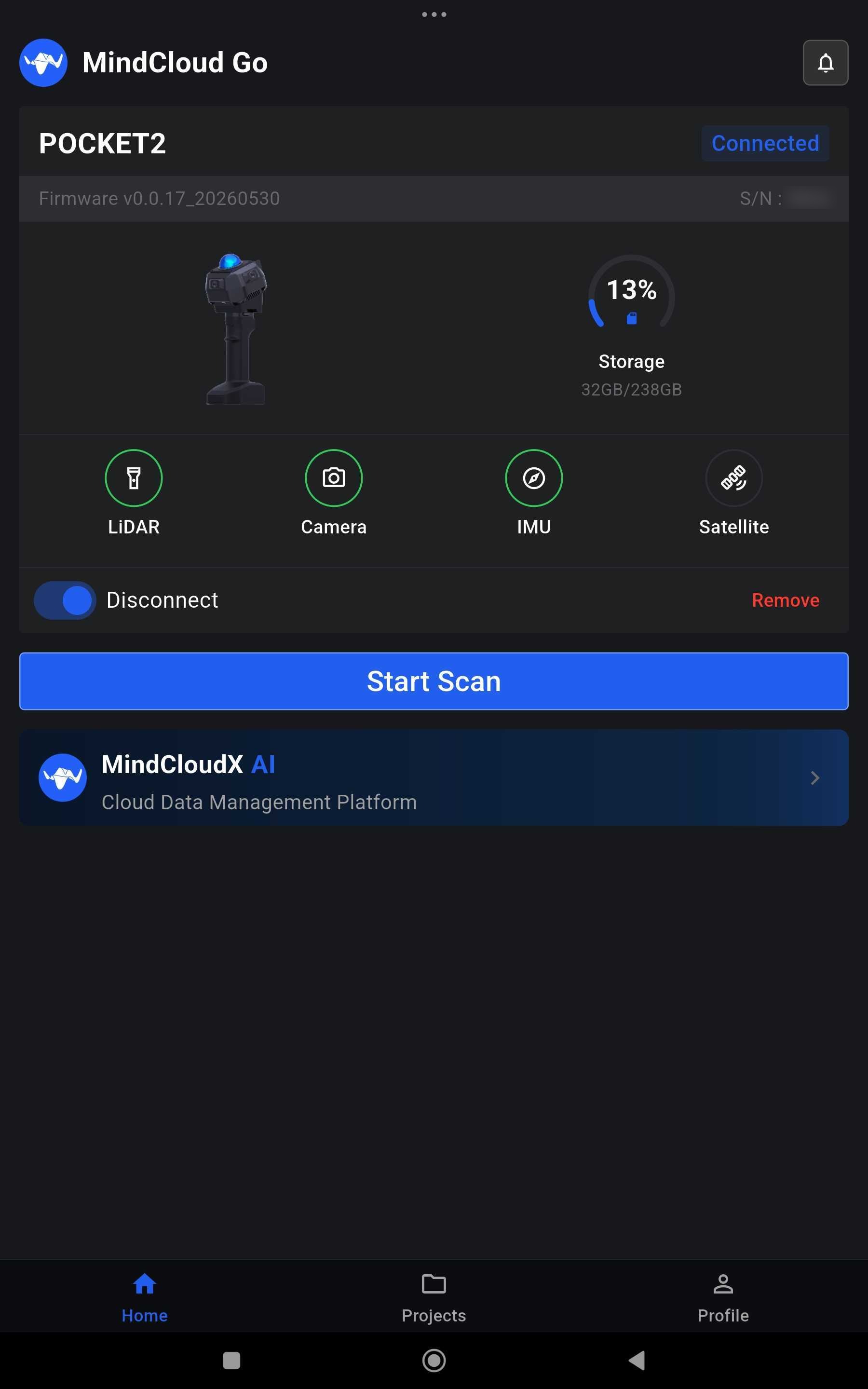
The S/N on this card is the scanner's serial number, alongside the model and firmware version. Note all three down — they are what Support asks for.
Also on this screen:
- The sensor indicators. LiDAR, Camera and IMU should all be green. Satellite stays grey unless RTK is connected — normal for an indoor scan, not a fault. If one of the first three is not green, sort that out rather than starting a scan.
- The storage gauge. It reports used against total. A long survey on a nearly full device is a survey you will not be able to finish.
Then press Start Scan to reach the new-project screen, which is where the Pocket2 Scanning Guide picks up.
Keeping the link up
Three phone settings decide whether a session holds:
- Turn off VPNs, proxies and any traffic-intercepting software. The app talks to the scanner on the local link; a VPN takes that traffic somewhere else and the app simply sees nothing.
- Turn off automatic network switching — "Smart Wi-Fi Selection", "Auto-Switch Data Network" and the equivalents in advanced WLAN settings. These exist to move you off a network with no internet, which is exactly the network you need to stay on.
- Choose the "keep connected" option when the phone asks whether to stay on a network with no internet access.
Two more, which are not settings:
- Mount the phone on the scanner. The link is Wi-Fi carrying live preview data, so it is sensitive to distance and interference, and a holder also removes the possibility of walking away from a running scan.
- On iPhone, keep the app in the foreground and the screen on. Backgrounding it is enough to lose the connection.
Turning the mobile data connection off entirely for the duration of a scan is the blunt version of all of the above, and it works.
Firmware and app updates
MindCloud Go checks its own version and the scanner's firmware each time it opens, while connected. Nothing installs on its own. If either is behind, a red dot appears in the top right of the home page, and tapping that red dot is what starts the update or the firmware upgrade. The scanner has to be restarted once a firmware upgrade finishes.
The version status is also readable on demand from Profile ▸ Check for Updates.
When it will not connect
From the Pocket2 User Manual, on Manifold's downloads page:
| Symptom | What to do |
|---|---|
| The scanner's Wi-Fi does not appear | Restart the scanner and search again. If it still does not show, try a different phone, and try from a different spot — a location with many competing Wi-Fi sources is a known cause |
| The phone joins the Wi-Fi but the app never connects | Check whether another phone already holds a connection to that scanner. Only one at a time |
| The link drops mid-scan, with no warning | The scan keeps running on the scanner. Rejoin its Wi-Fi with the same phone, restarting MindCloud Go if you need to, and the app returns to the running session. Only the phone that started the scan can stop it |
| The app shows disconnected | Work through the three phone settings above: keep-connected chosen, VPN and proxy off, automatic network switching off |
A dropped link does not lose the scan — but only the phone that started it can end it. Stopping is the step that commits the data covers what to check after a drop.
Connected? Continue with the Pocket2 Scanning Guide.