Fleet Management System
The Fleet Management System is the web application you run your robots from. Missions are planned here, dispatched here, watched here, and everything the robots find is kept here. It runs in a browser, and there is nothing to install.
A working deployment is the robots, the map they navigate by, and this system. Fleet Management is the part your team uses every day. The Deployment Toolbox prepares a site once, before any robot drives there. Detection algorithms — ours on the robot, or a partner's alongside it — report into this system too, so what they find arrives as events here.
The site map ties these parts together, and it travels one way: the Deployment Toolbox pushes it here as a draft, an administrator publishes and then activates it, and robots receive it from here. The Toolbox never reaches a robot directly.
Key features of the system are summarized in the table below, and each is covered in its own section.
| Feature | What it gives you |
|---|---|
| Fleet overview | Every site and robot, with live status |
| Robot dashboard | Position on the site map, telemetry, camera feeds, health and activity |
| Robot teleoperation | Drive a robot from the browser, plus emergency stop, docking and posture commands — one operator at a time |
| Mission planning | Build missions from waypoints, the routes between them and a schedule; reuse them across sites |
| Detection review | Everything the robots detected, filterable and reviewable, kept as a record that cannot be edited or deleted |
| Tenant management | Your sites and their robots, the maps they navigate by, the people who use them, and what each role may do |
| Audit log | An append-only record of who did what |
Fleet overview
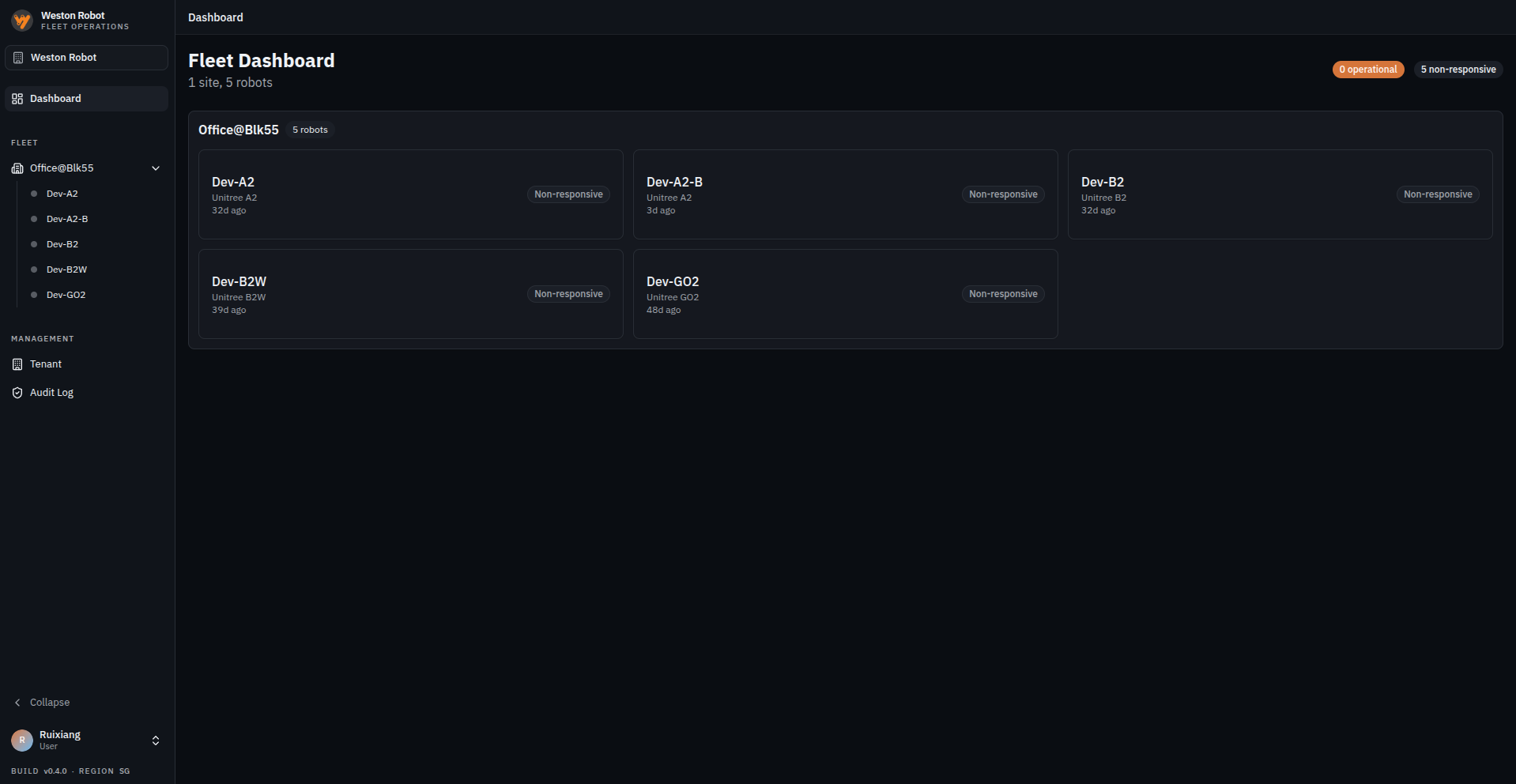
The dashboard is the entry point, and it is built around the question an operator asks first: is anything wrong right now? Sites run down the side, robots are grouped under the site they belong to, and a status count across the top summarises the whole fleet — how many robots are operational, how many are not responding, how many are faulty.
That grouping is not cosmetic. A site is the unit nearly everything else is scoped to: a robot belongs to one, a map is activated for one, and most roles are granted for one rather than across your organisation. Someone responsible for two buildings sees two sites, and the authority they hold at each can differ.
The overview is deliberately shallow. It tells you which robot needs attention, not why — one click into a robot opens the Robot dashboard, where the detail lives.
Robot dashboard
Opening a robot gives you that one machine on one screen. It is where an operator spends their time, and everything needed to judge a running mission is laid out together rather than behind tabs:
- Where it is — its position and heading drawn on the site map, so you can see it against the building rather than as a coordinate.
- What it can see — live feeds from its cameras.
- What it is doing — the mission running now, and what is scheduled next.
- How it is holding up — telemetry, meaning the readings a robot reports about itself, such as battery level and temperature.
- What has been raised — alerts for this robot, with the durable record in Detection review.
Two things shape what you see here. Camera feeds stream live from the robot, so the panel shows its present view. And navigation runs on the robot itself, from the map it already holds, so a mission carries on through an interruption in the link — what the robot should do if that happens is a policy you set: stop safely, halt immediately, or continue.
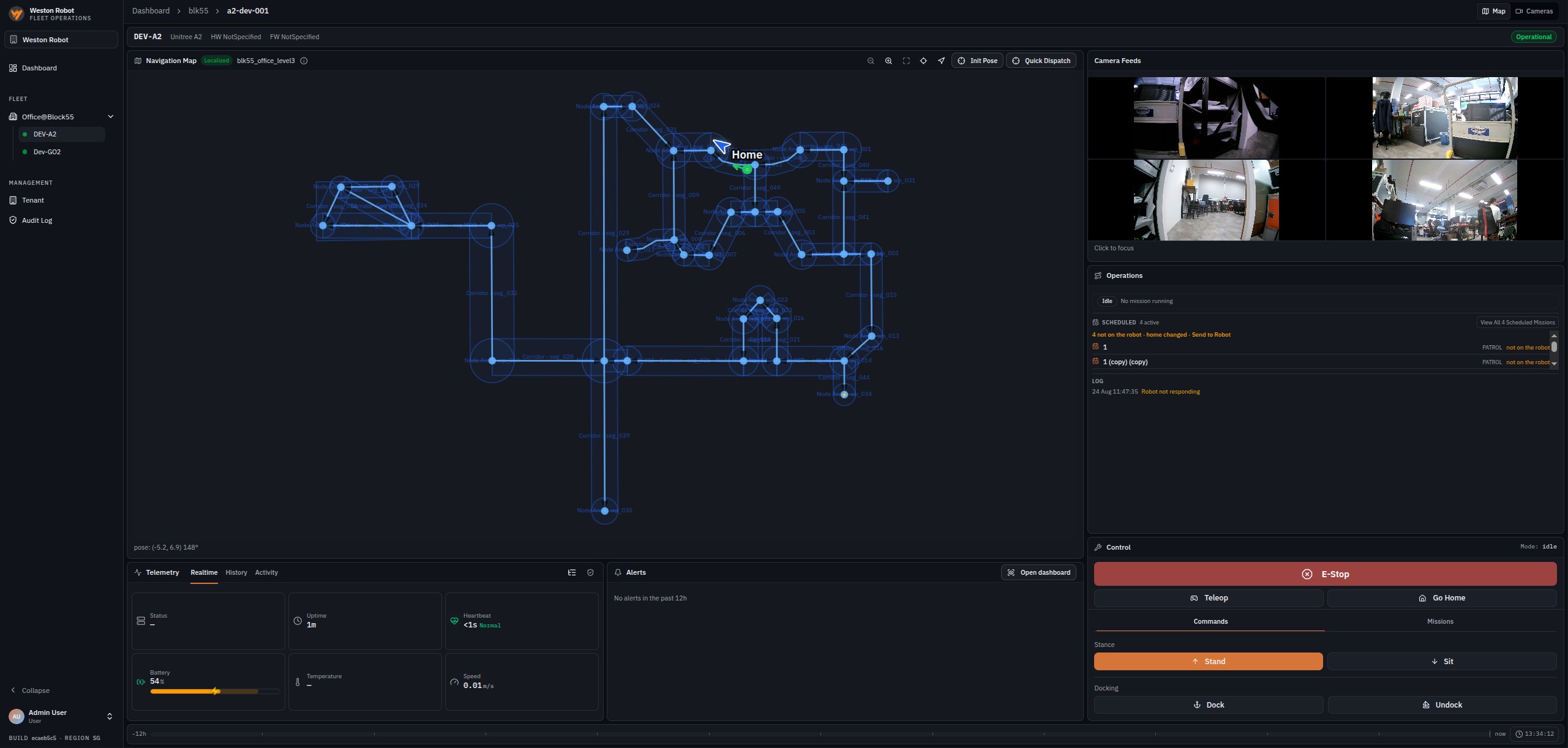
Robot dashboard covers the page in full: each panel, the telemetry readings and when a robot stops counting as reporting, the diagnostics view for a robot that is misbehaving, recovering localisation, and how battery level and connection loss change a running mission.
Robot teleoperation
Beyond watching, an operator can intervene directly: drive the robot from the browser, stop it, send it home, dock it, or put it into a posture such as stand or sit.
Because these commands move a machine in a real building, taking control is deliberate rather than incidental. Control is held under a lease — an exclusive claim on that robot — so only one person drives at a time, and a second operator cannot take the controls until the lease is released. There is no ambiguity about who is responsible for a moving robot.
Teleoperation carries its own safeguards. It stops the robot when the connection to the fleet degrades, on the reasoning that driving a machine you can no longer see is worse than halting it, and it refuses the controls to anyone who has not properly taken control.
Commanding a robot is Operator authority, granted per site. An Observer at the same site sees everything described above and can do none of it.
What the driving view shows depends on the robot. The assisted view below — camera feeds stitched into a surround view, proximity zones drawn from the robot's own sensing, and a bird's-eye radar panel alongside speed and link quality — is tuned for a particular robot configuration and deployment. It is not part of every robot's teleoperation by default, so what a given robot presents depends on how that robot was set up.
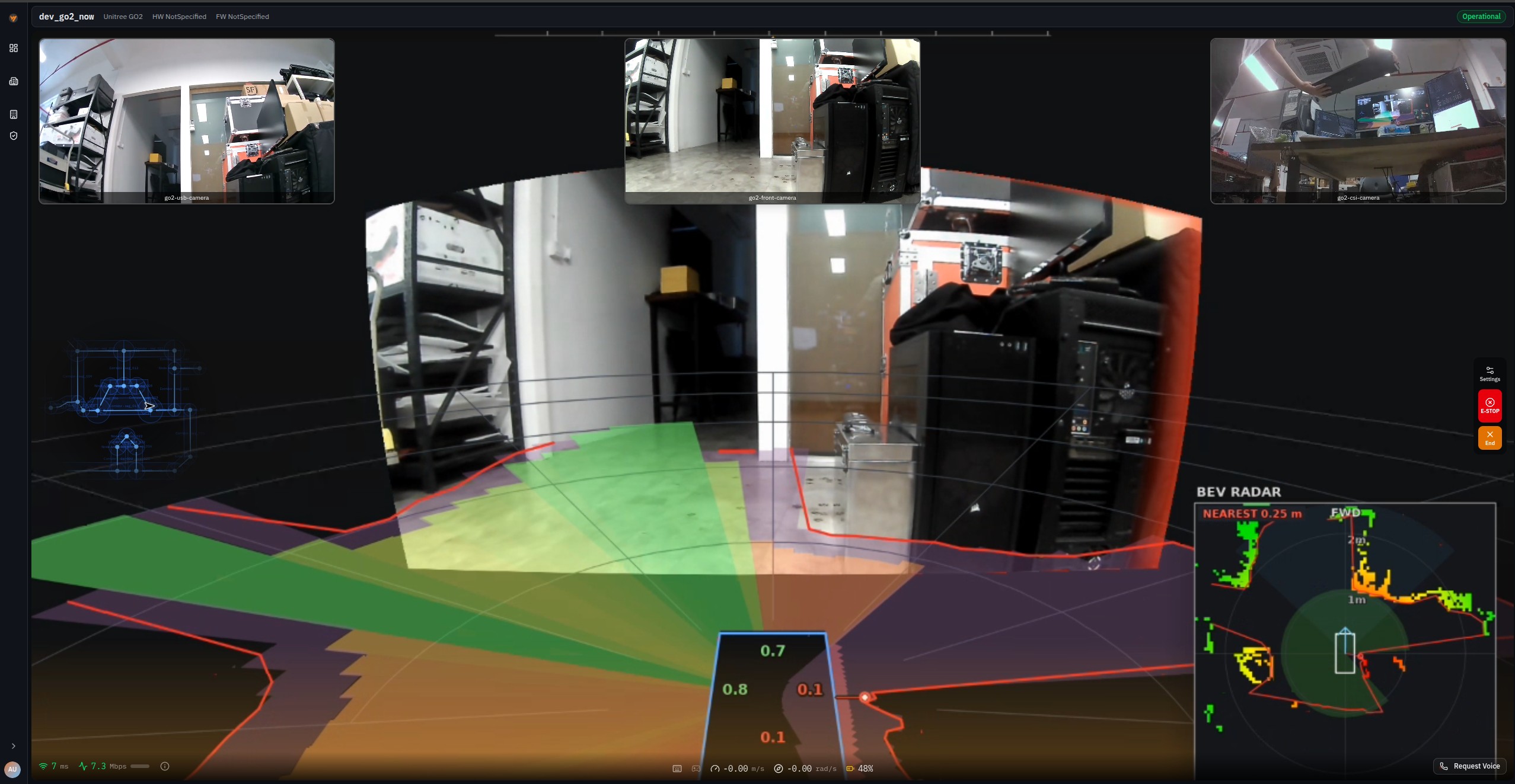
Robot teleoperation covers driving in full: keyboard and gamepad control, remapping and inverting the axes, speed and deadzone, arranging the camera views, and audio. Taking and releasing the lease sits with the rest of the control panel on the Robot dashboard page.
Mission planning
A mission is an ordered list of places on the site map, what the robot does at each of them, and when it should run. It is the unit of work the system is organised around: built once, kept in a library, and reused rather than recreated.
The places come from the map. The site map defines waypoints — the points a robot can be sent to — and a mission's checkpoint is a waypoint together with a heading and, optionally, actions to perform on arrival, such as pausing for a set time or playing an announcement. The map says where a robot can go; the mission says what it does there.
Three things keep a growing library maintainable. Saved locations mean a place named once is reused, so correcting it later corrects every mission that uses it. Duplication and revision comparison mean the next mission starts from an existing one. And missions are portable across sites, so a second building starts from the first.
Dispatching hands a mission to a named robot, on demand or on its schedule. A robot can also be sent somewhere once, with no mission at all, through Quick Dispatch.
One constraint follows from missions referencing the map: a robot must be on the map the fleet has activated before its missions can be edited or dispatched. When a newer map is activated, that robot's missions are switched off and stay locked until it confirms the new map, rather than running against waypoints that may have moved.
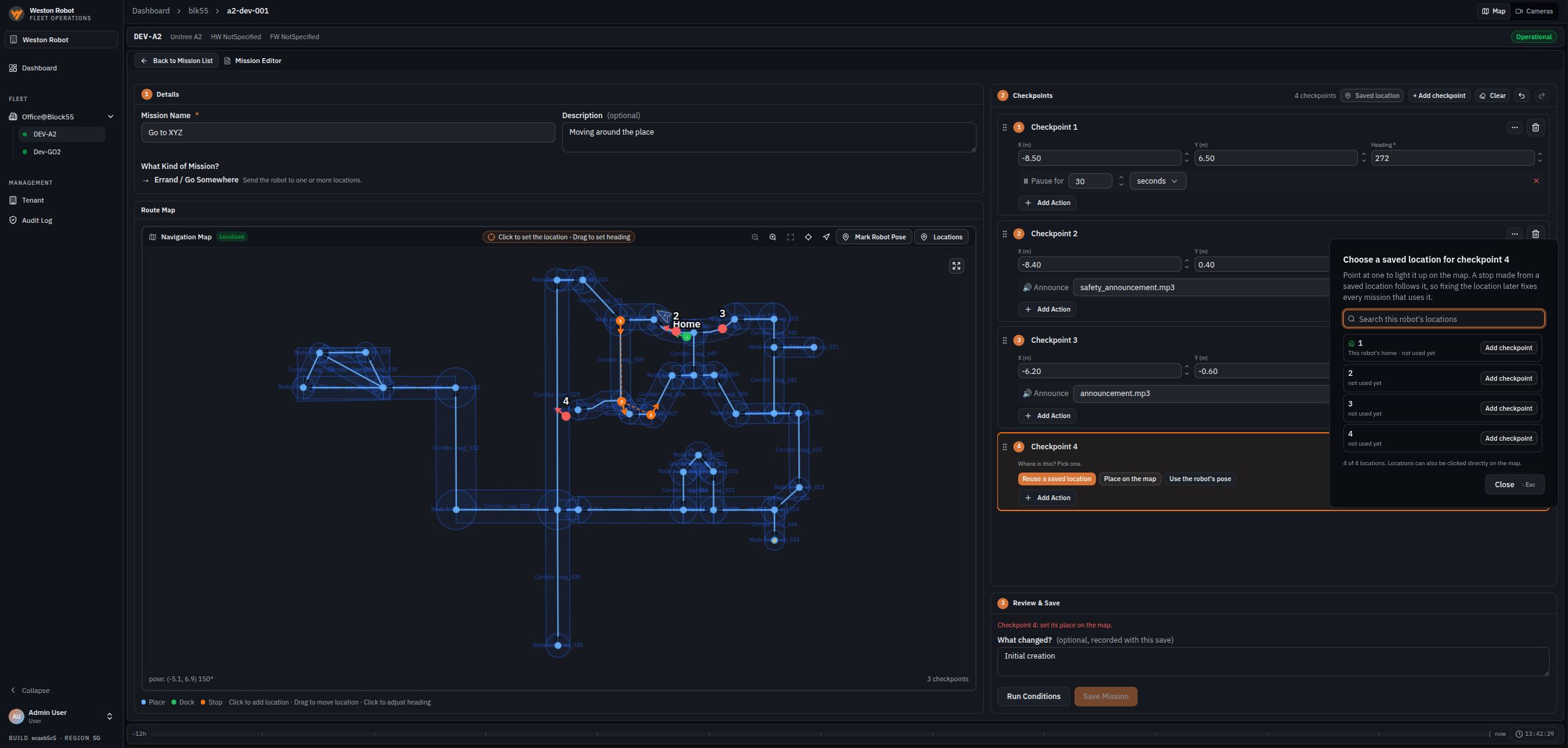
Mission editing and dispatch covers what a mission is made of, the editor's three stages, saved locations, run conditions and how they gate activation, sending missions to a robot and telling whether they arrived, and the history of what ran.
Detection review
Everything the robots observe lands in one place and stays there. Whatever did the observing reports into the same list — a camera on the robot, or an analytics service running elsewhere — so the record is complete regardless of what found the thing.
An observation is recorded as an event. An event whose priority is high enough is raised into an alert, and that is what puts it in front of an operator — everything else is kept and searchable without anyone being asked to look at it.
Entries filter by robot, type, priority and review state. Alerts are the reviewable ones: each is acknowledged, or marked a false alarm, against the name of whoever did it. The record keeps the image the detection was made from where one was stored, cannot be edited or deleted, and reviewer notes are appended rather than replacing what was there. The result is an evidence trail rather than a working queue: it will say the same thing when someone reads it back months later.
Priority decides what raises an alert. The platform recognises 25 event types, each carrying one, and an alert is raised at high priority and above — 12 of the 25, of which two are critical: fire or smoke, and a person down. The other 13 are recorded and searchable in the same list without alerting anyone. An event type the platform has not been told about is recorded at lowest priority as Unclassified detection, so an integration can introduce new types and they are still captured.
Alerts are raised in the app, on the dashboard an operator is already watching, so they arrive in the same place as the fleet they concern. Each detection is kept with the still image it was made from, and that image is what a review works from afterwards.
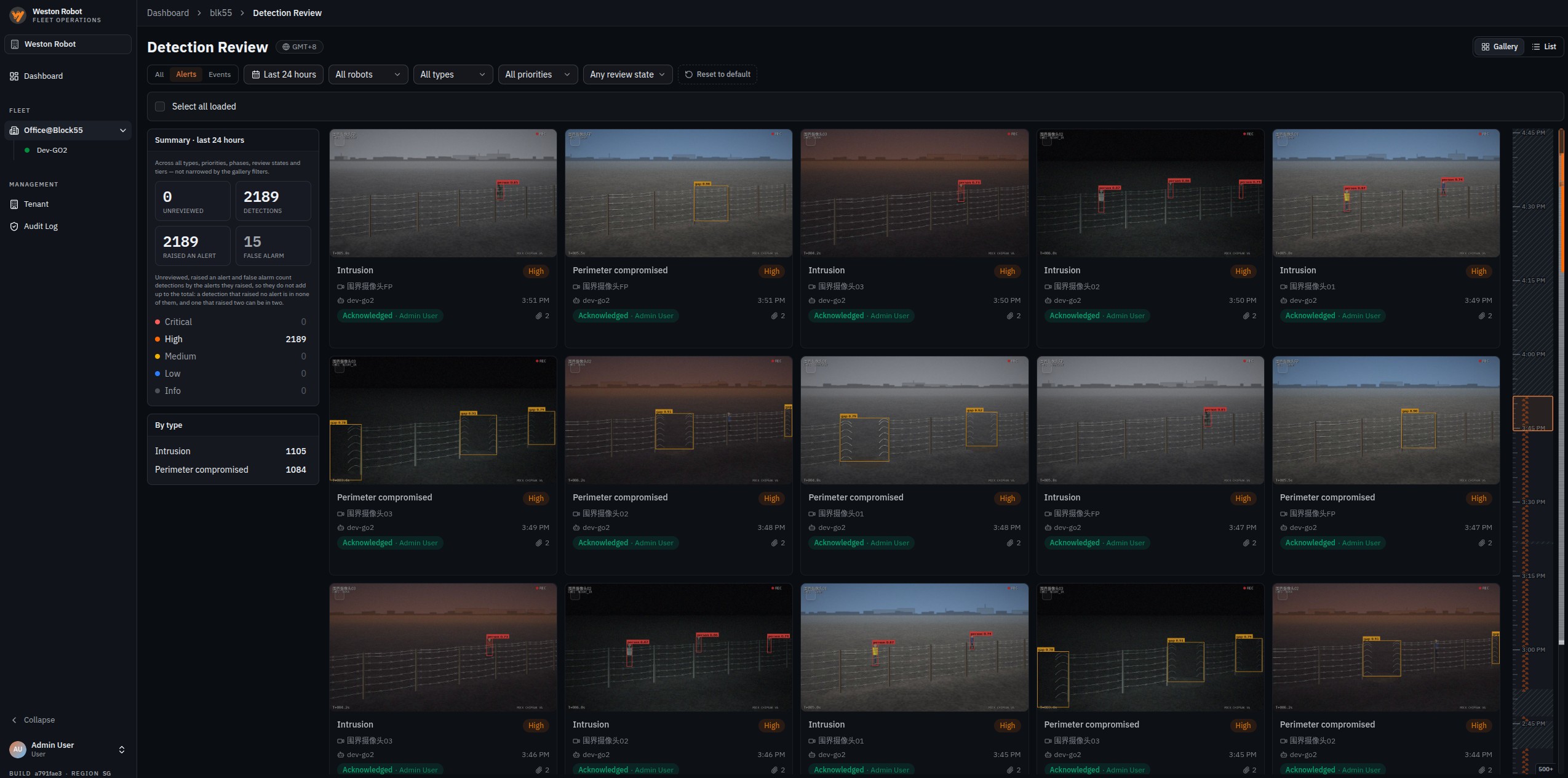
Detection review covers the difference between an event and an alert, lists all 25 event types with the priority each carries, and explains filtering, acknowledging and marking false alarms, and what every record keeps.
Tenant management
Your tenant is your organisation's own space in the system. Sites sit inside it, robots and maps belong to a site, and people are given roles within it — so adding a site, seeing which robots and maps it holds, activating a map, and granting somebody access are all the same job in the same place.
Access itself is expressed as roles rather than as individual permissions, and they form a ladder: watching, then commanding, then administering. Each level contains the one below it, so there is one decision per person per site instead of a set of switches.
Scope is the second half of the model. Three roles — Observer, Operator and Site Admin — are granted per site, so someone can be an Operator at one building and an Observer at another. Two are held across your whole tenant, meaning your organisation's own space in the system with its sites, robots, users and data, and apply everywhere at once: Auditor, which reads operational and audit logs without being able to command anything, and Tenant Administrator, which holds Site Admin authority at every site plus the management of sites, users and roles.
The line that matters most in daily use falls between Observer and Operator: anything that changes what a robot does starts at Operator. The line that matters most in planning falls at Site Admin, because that role both authors a site's map and activates it. A single administrator can therefore take a map from draft to live; where a process calls for a second person to approve it first, that approval comes from the process rather than from the system.
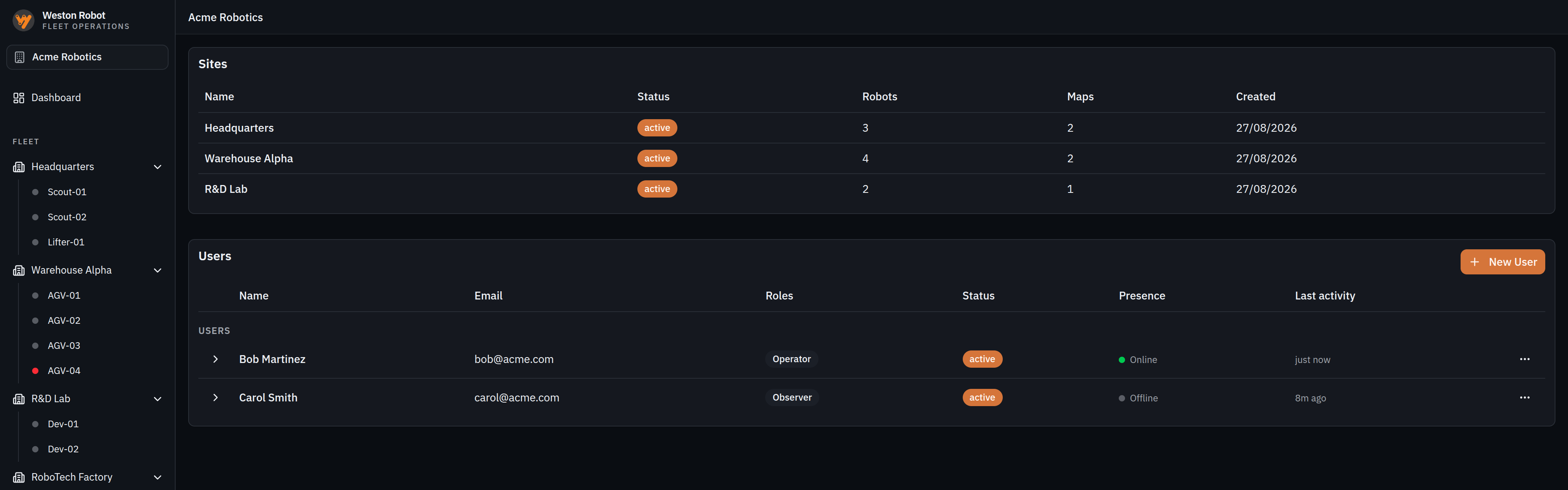
Tenant management covers how a tenant, its sites and their robots fit together, all five roles and what each may do, how a site's maps are revised and activated, and how a robot is assigned one and caught up when it falls behind.
Audit log
Actions are recorded in an append-only log: entries are added, never changed or removed. Together with detection records, which are stored the same way, it means the two things most likely to be asked about after an incident — what the robot saw, and what people told it to do — are both answerable from records that cannot have been tidied up afterwards.
The Auditor role exists for exactly this: it reads operational and audit logs across every site and can command nothing. A reviewer can be given the whole picture without being given the ability to move a robot.
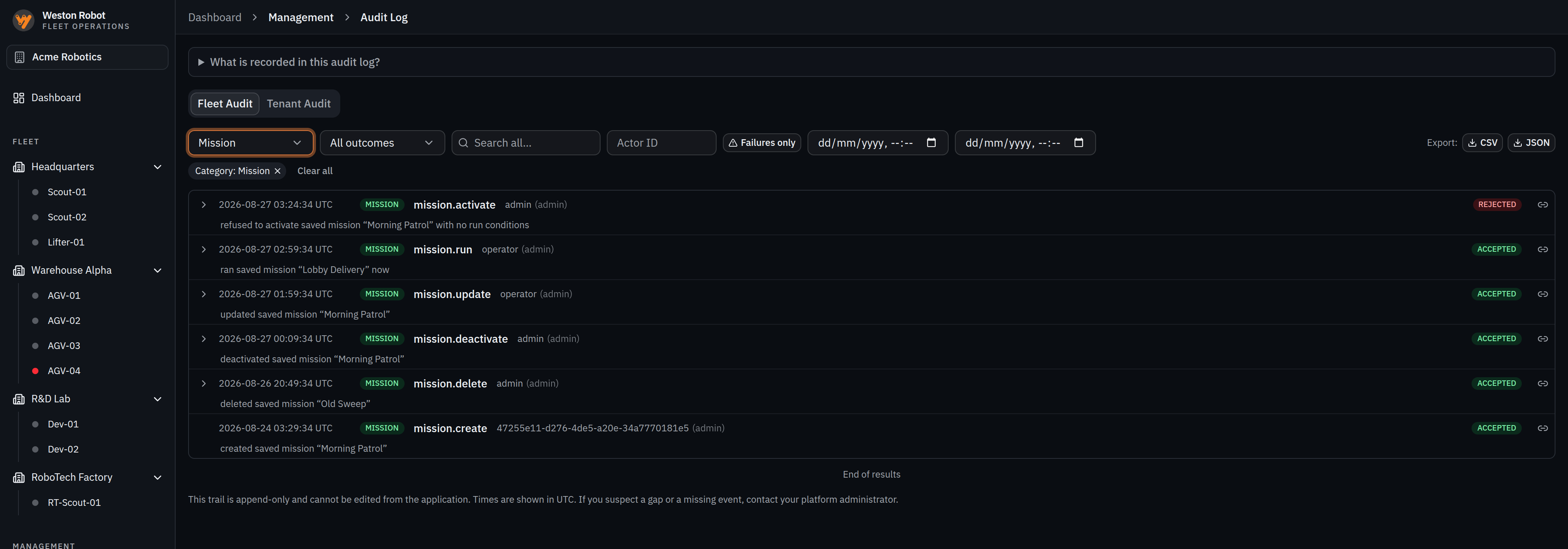
Audit log covers both trails — your own operations, and every visit Weston Robot staff made to your tenant under elevation — the categories entries fall into, pivoting to an actor, linking to a single entry, export and its limits, and the roles that can read them.
Further topics
Deployment and servicing — where the system runs (shared cloud, a dedicated cloud instance, or on-premise), what that decides about upgrade scheduling and data residency, and how robots and their software are kept current.
Support
Before raising a ticket, note which site and robot are involved, what the robot was doing just before, and what you saw on screen. Before you contact us lists what helps and how to submit a support request.