Robot teleoperation
Teleoperation is driving a robot yourself, from the browser, when a mission is not the right tool — recovering a robot that has stopped somewhere awkward, positioning it precisely, or looking at something the cameras cannot reach on their own.
Control is held under a lease, so only one person drives at a time. Taking and releasing it is covered on the Robot dashboard page, along with the rest of the control panel.
Driving
Two input methods work at once — whichever you touch is the one giving commands.
Keyboard. W and S drive forward and back, A and D turn, and Q and E strafe sideways on robots that can. Commands are sent 15 times a second while a key is held, and the robot is sent a stop the moment you release. Keyboard driving can be switched off entirely if you would rather it were not live in a browser tab.
Gamepad. Any controller the browser reports as a standard gamepad works. The default mapping is:
| Input | Default binding |
|---|---|
| Forward and back | Left stick, vertical |
| Turn | Right stick, horizontal |
| Strafe | Left stick, horizontal |
| Emergency stop | LB |
| Push-to-talk | RB |
Each axis can be reassigned and inverted independently, which is what makes a controller that pushes the wrong way usable without relearning it. The two buttons can be reassigned or set to none.
Speed and sensitivity
| Setting | Default | What it does |
|---|---|---|
| Linear speed | 0.5 m/s | Full-stick forward and back |
| Angular speed | 1.0 rad/s | Full-stick turn |
| Lateral speed | 0.5 m/s | Full-stick strafe |
| Deadzone | 0.1 | How far a stick must move before it counts, so a resting stick does not creep |
These are the values a full deflection asks for, so lowering them makes the whole range gentler rather than capping the top — the right move for a robot working close to people or shelving.
Settings apply globally, and can be overridden per robot. Editing while a robot is open changes that robot's override; the global value is shown beside it so you can see what you have departed from, and Reset to global puts it back. A heavy outdoor machine and a small indoor one can therefore sit at different speeds without either being wrong.
Arranging the view
What you see while driving is yours to arrange. Stream Settings, from the camera panel, holds it, and the arrangement is remembered per robot.
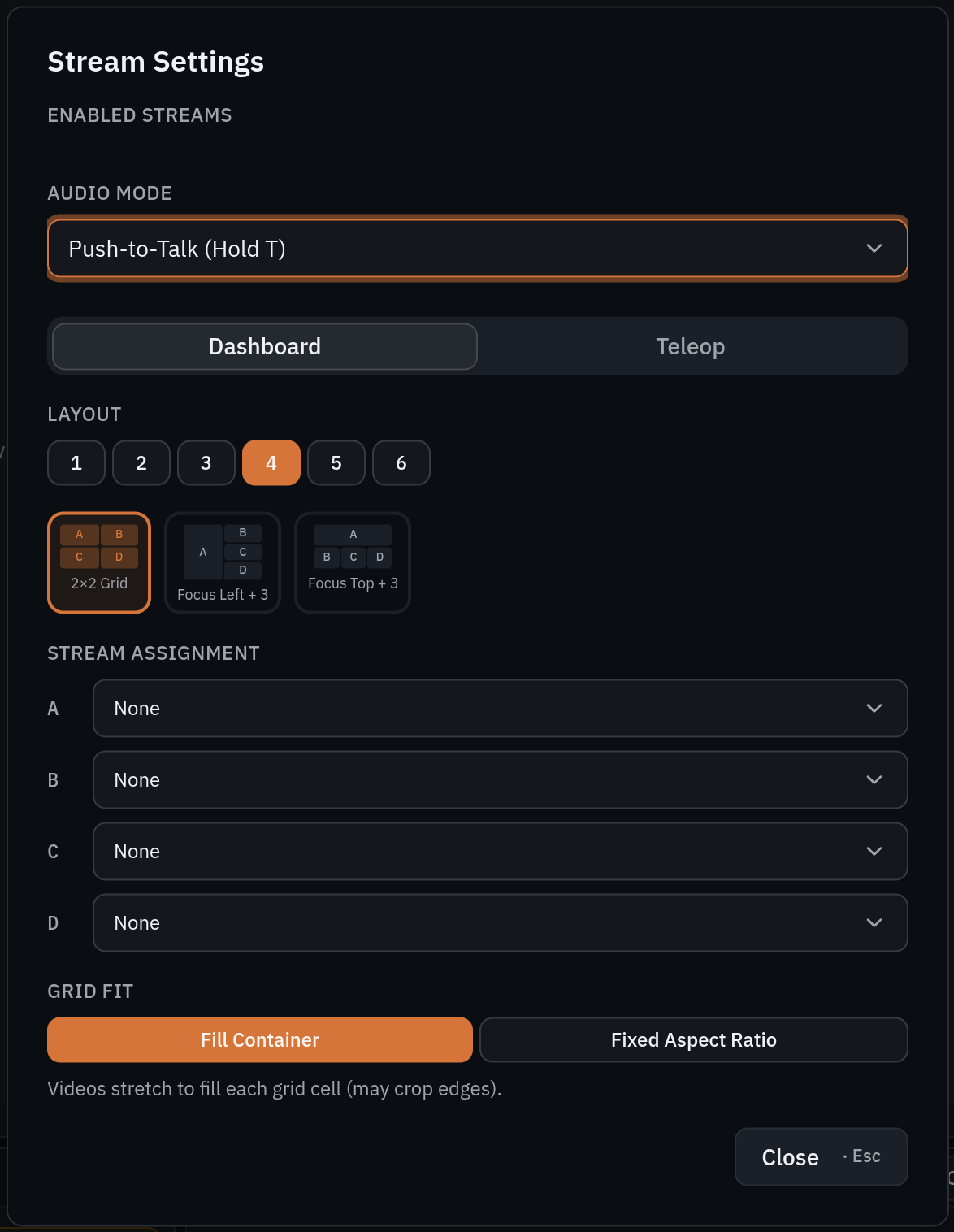
Layout is chosen in two steps — first how many panes you want, from one to six, then which arrangement of that many. Four panes offers a 2×2 grid, one large pane with three small, or one across the top with three beneath; the thumbnails show each. Stream assignment then puts a named camera in each lettered slot.
| Setting | Options |
|---|---|
| Layout | One to six panes, with several arrangements at each count |
| Stream assignment | Which camera goes in each lettered slot |
| Grid fit | Fill container, which uses every pixel and may crop edges, or fixed aspect ratio, which keeps the whole frame |
| Picture-in-picture | A stream pinned to a corner — top or bottom, left, centre or right — or switched off |
| Visible in teleop | Which cameras appear while driving, which can be a smaller set than the dashboard shows |
Dashboard and teleop keep separate layouts, on their own tabs, so the arrangement you want while driving need not be the one you want while monitoring.
Grid fit is the choice worth deliberate thought: filling the pane uses every pixel but crops the edges, and fixed aspect keeps the whole frame at the cost of letterboxing. For judging clearance beside a robot, seeing the whole frame usually matters more than filling the screen.
Layout preferences are restored when you return to a robot. Which camera streams are running is not — streams are started fresh each session, so a view opens empty until its feeds connect.
Audio
Audio is push-to-talk by default: hold to speak, release to stop — T on the keyboard, or the bound gamepad button. It can be set to always-on where an operator needs both hands, from the same Stream Settings dialog. Incoming volume is adjustable separately.
Push-to-talk is worth keeping as the default in a shared control room, since always-on carries whatever else is being said in the room to whoever is near the robot.
The assisted view
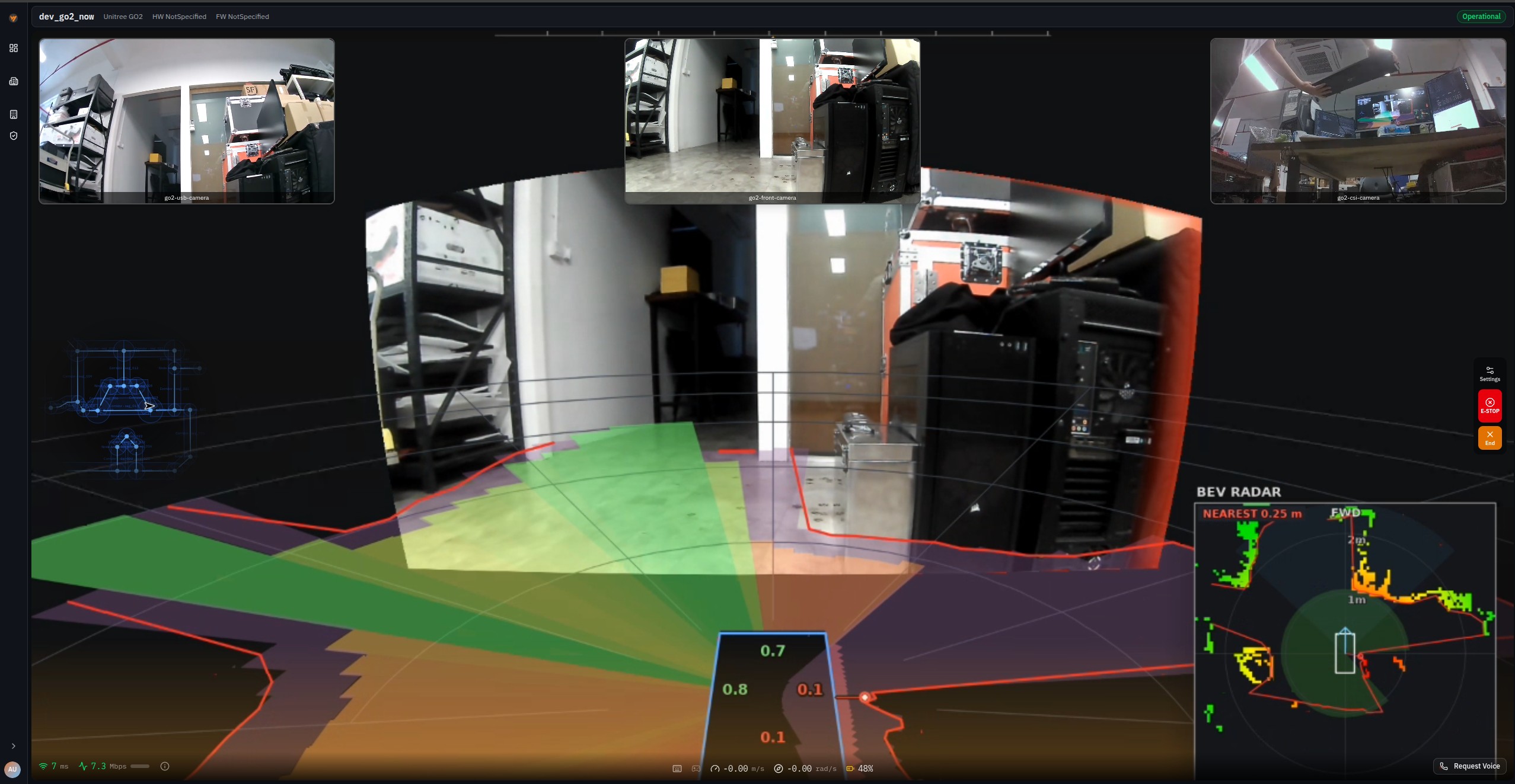
Some robots present an assisted driving view: camera feeds stitched into a surround view, proximity zones drawn from the robot's own sensing, and a bird's-eye radar panel, alongside speed, link latency and bandwidth.
It is tuned for a particular robot configuration and deployment, and is not part of every robot's teleoperation by default — what a given robot shows depends on the sensors it carries and how it was set up. Confirm which of your robots have it before planning work that relies on it.
Common questions
The robot stopped on its own while I was driving
Teleoperation stops the robot when the connection to the fleet degrades. That is deliberate — driving a machine you can no longer see is worse than halting it.
My controller drives the wrong way
Invert the axis rather than remapping it. Each of the three axes has its own invert, and the defaults suit a common controller layout rather than every one.
I changed a speed and it only applied to one robot
Expected. Editing with a robot open sets that robot's override; the global value is shown beside it, and Reset to global clears the override.
The view opened with no cameras
Streams start fresh each session rather than being restored, so the panes fill as the feeds connect. The layout itself is remembered.
Can two people drive at once?
No. Control is held under a lease, and only one person holds it at a time.