Audit log
Actions are recorded in an append-only log: entries are added, never changed or removed, and the trail cannot be edited from the application. Times are shown in UTC throughout, so entries from different sites compare directly.
Two trails
The log is split in two, and they answer different questions.
| Trail | Records | Answers |
|---|---|---|
| Fleet audit | Operational events from your robots and the people running them | What happened at my sites? |
| Tenant audit | What Weston Robot staff did on your tenant from outside | Has anyone from the vendor been in here? |
Fleet audit
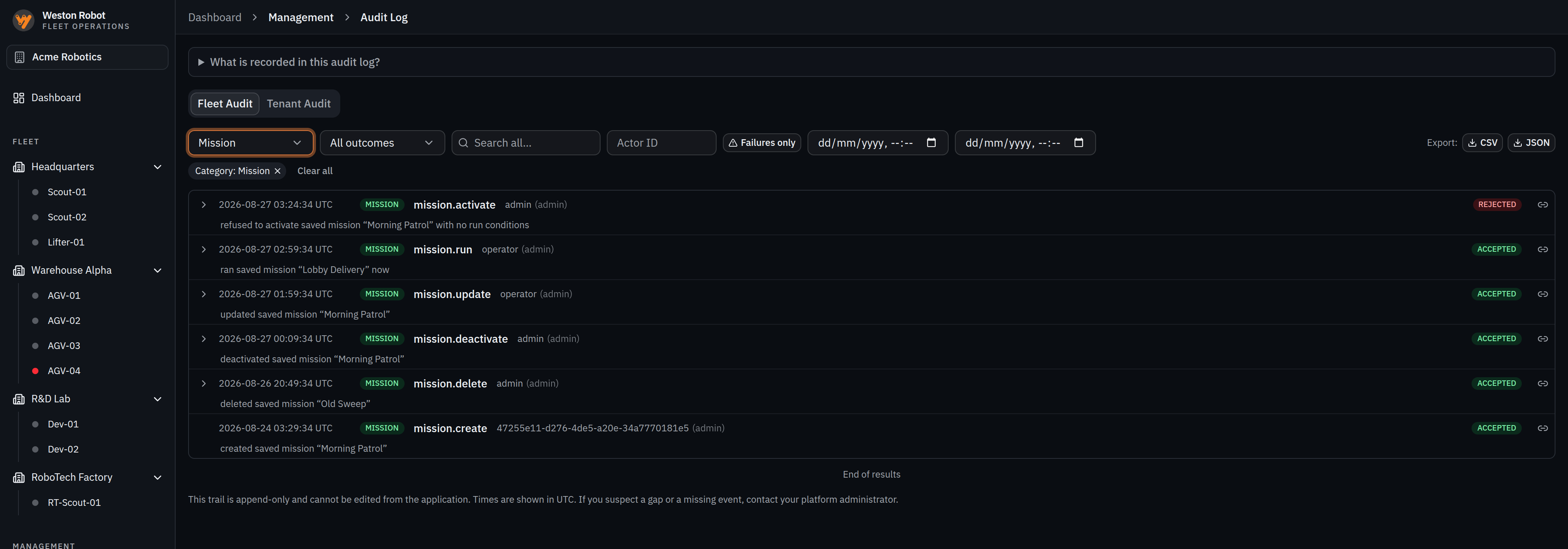
Every entry carries the action taken, who took it, when, and whether it was accepted or rejected. Refusals are recorded alongside successes, which is what lets the trail answer "was this attempted?" and not only "was this done?" — a refused mission activation or a rejected command is often the more interesting row. Each also carries a plain-language description, so a row reads as a sentence rather than as an identifier.
| Category | Covers |
|---|---|
| Command | Commands sent to a robot |
| Mission | Creating, editing, deleting, activating, deactivating and running missions |
| Authorization | Who was granted or refused access to what |
| Safety | Safety-related actions, such as emergency stops |
| Lifecycle | Robots and sites entering and leaving service |
| Fault | Faults raised against a robot |
Not every entry has a person behind it. An entry with no operator is attributed to the robot, because that is what it is — the robot reporting on itself, or a mission that fired on its own schedule with nobody involved. That is a different thing from an action whose actor could not be identified, and the log distinguishes them.
Where a person is the actor, their name is resolved from your user directory. A raw identifier in that column means either a non-human actor or a directory your role cannot read.
One robot's history is also reachable from that robot's own page, already narrowed to it — the quicker route when the question is about one machine rather than the site.
Tenant audit
Supporting a deployment sometimes means our staff need access to your tenant. That access is not silent: it runs under an elevation, and the elevation and everything done during it are recorded here for you to read.
Two views onto the same records:
| View | Shows |
|---|---|
| Sessions | One card per visit — who entered, the reason recorded, how it ended, how many actions were taken and how many were denied, expandable to the individual actions |
| Timeline | The individual events in order — entered tenant, each action under elevation, left tenant |
A session ends in one of three ways, and the difference is worth reading: left, meaning the person exited deliberately; expired, meaning the elevation timed out; or active, meaning it is still open right now.
Sessions is the view to start from. It answers what visits happened, whether each one ended, and whether anything unexpected was attempted, without reading every row — and the denied count is the number to look at first.
Finding an entry
Entries filter by category, by outcome — including a failures-only view — by actor, by date range, and by free-text search.
Two shortcuts are worth knowing:
- Pivot to an actor. An actor's name is clickable, which re-filters the log to everything that person did. It is the fastest way from "this one action looks odd" to "what else did they do that day".
- Link to a single entry. Any entry can be copied as a link. Opening it brings up the log with that entry highlighted and scrolled to, which is what makes an audit finding quotable in a ticket or an email.
Exporting
Any filtered result can be exported as CSV or JSON — the route to take when a reviewer wants the record in their own tooling rather than a screen to look at.
The export is the whole filtered set, not the rows currently on screen; it pages through the rest for you. It stops at 10,000 rows and tells you when it has done so, so a truncated export is never mistaken for a complete one. Narrow the filters and export again if you hit it.
Who can read it
Reading the log is a role, not a permission you grant per person. Auditors read both trails across every site while being unable to command anything — which is exactly what makes the role useful for a reviewer who should not be able to move a robot. Tenant administrators can read it too. See Roles.
Where other actions are recorded
Some cloud-side actions — activating a navigation map among them — are recorded in the platform security trail rather than in this log. If you are looking for one of those and cannot find it here, that is why, and your platform administrator can retrieve it.
Common questions
Why is an action I know was attempted missing?
Check the category and date filters first, and whether you are on the fleet or tenant trail — the two hold different kinds of entry. Cloud-side actions such as activating a map are in the platform security trail rather than here. If an entry still appears to be missing, raise it: a gap in an append-only trail is worth investigating.
An entry has no user against it
It was the robot acting on its own — reporting on itself, or running a mission that fired on schedule. That is recorded as the robot rather than as an unidentified person.
Has anyone from Weston Robot accessed our data?
The tenant trail answers exactly that. Its Sessions view lists every visit, when it started and ended, and what was done during it.
A session shows as expired rather than left
The elevation timed out instead of the person exiting deliberately. The actions taken during it are recorded either way.
My export looks short
Exports stop at 10,000 rows and say when they have been truncated. Narrow the filters — by date range or category — and export again.
Can an entry be corrected or removed?
No. The trail is append-only and cannot be edited from the application. A correction is a new entry, not a change to an old one.