Robot dashboard
One robot on one screen. The view is laid out so that judging a running mission needs no switching between tabs: where the robot is, what it can see, what it is doing, how it is holding up, and the controls to intervene are all present at once.
The panels
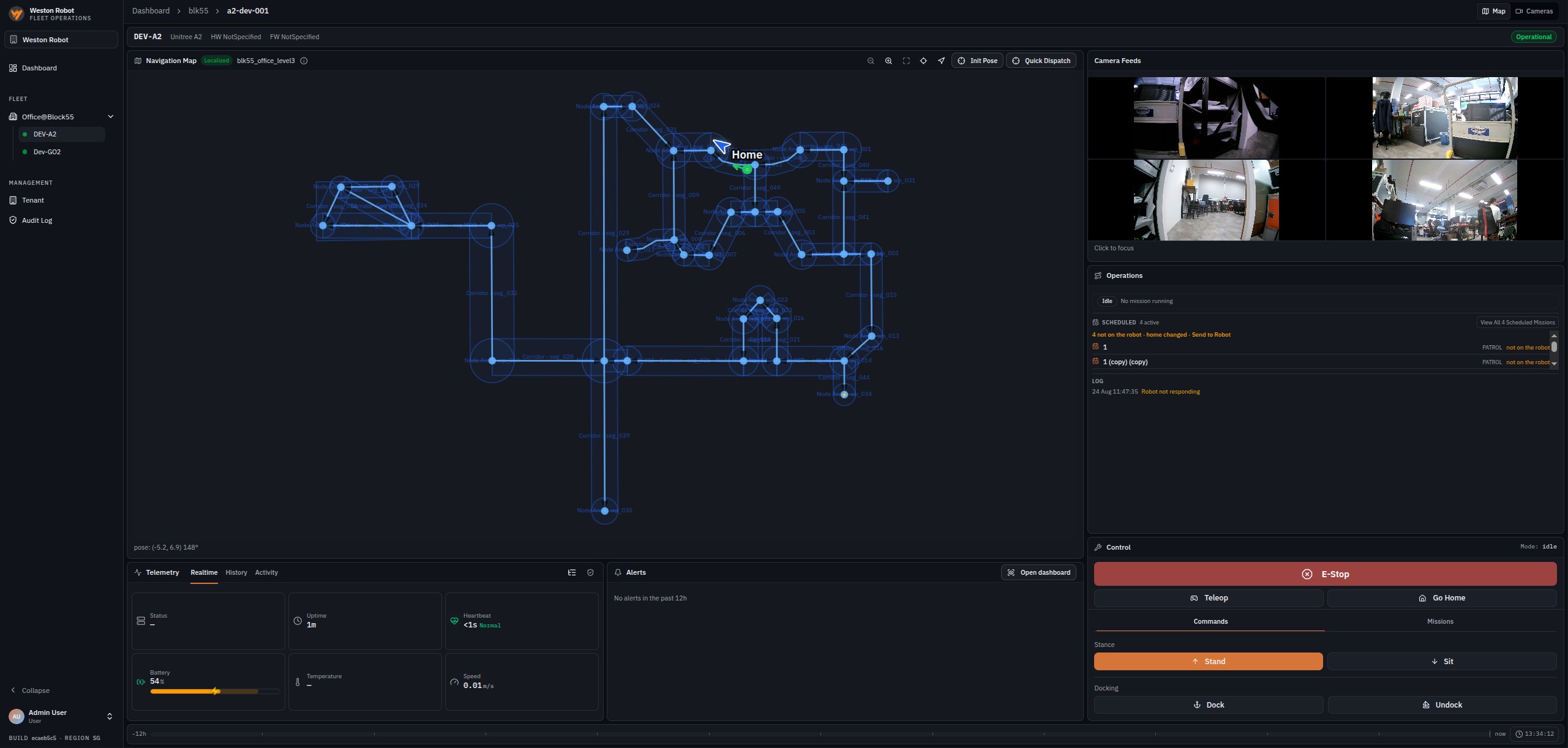
| Panel | What it carries |
|---|---|
| Navigation map | The site map with the robot's position and heading drawn on it, the map revision in use, and whether the robot is localised — that is, whether it knows where it is on that map. Quick Dispatch and pose controls sit on its toolbar |
| Camera feeds | Live feeds from the robot's cameras, each labelled, any of which can be brought into focus |
| Operations | The mission running now, how many are scheduled, and a running log of what the robot has reported |
| Telemetry | The readings the robot makes about itself — see below |
| Alerts | What has been raised for this robot over a window you choose — 12 hours by default, adjustable from 1 to 48. The durable record is in Detection review |
| Control | The robot's current mode, and the controls to intervene |
The main view area shows one or the other. A Map / Cameras toggle decides whether the navigation map or the camera feeds take the large panel, with the other moving aside. An operator watching a robot drive can give the space to the feeds; one checking progress against the building can give it to the map. Which of the two opens by default is a per-user preference.
Localisation is worth watching. A robot that is not localised does not know where it is on the map, so map-relative work — dispatching a mission, sending it home — has nothing to work from until it does. The map reports which of four states it is in: uninitialised, initialising, tracking or lost.
Init Pose, on the map toolbar, is the recovery for a robot that is not tracking. You point at where the robot actually is and set its heading; it localises from there. It stays available when the robot's other map actions are not, precisely because it is the action that fixes the problem those actions are blocked by.
Telemetry
Telemetry answers "is this robot all right?" and is presented three ways: realtime for what is true now, history for how a reading has moved, and activity for what the robot has been doing.
| Reading | Tells you |
|---|---|
| Battery | Charge remaining — the figure that decides whether a mission can start |
| Heartbeat | How recently the robot reported in. A healthy heartbeat is sub-second; a stale one is the first sign of a link problem |
| Uptime | How long the robot has been running since it last started |
| Temperature | Thermal state |
| Speed | How fast it is moving now |
| Status | Operational, non-responsive or faulty — the same status the fleet overview counts |
When a robot reads as offline
The robot sends a lifecycle heartbeat about every 30 seconds, and how recently one arrived is what decides whether it counts as reporting:
| Since the last heartbeat | Reads as |
|---|---|
| Under 45 seconds | Normal |
| 45 seconds or more | Stale — a beat has been missed |
| 90 seconds or more | Lost — three beats missed |
Telemetry is graded separately from the heartbeat. The robot's status signal publishes about every two seconds, so 30 seconds of silence is taken as data having stopped flowing altogether. Individual readings also age out on their own after 90 seconds, which is what stops a panel presenting a stale figure as though it were current while other signals keep arriving.
Two channels are graded independently, and they can disagree. A robot can be operational on the data plane — driving, reporting telemetry — while its on-robot management agent is offline. That combination matters when it happens, because updating a robot's credentials remotely depends on the management channel rather than the data one.
Diagnostics
Telemetry says whether a robot is healthy. Diagnostics says what is unhealthy, and it opens from the telemetry panel.
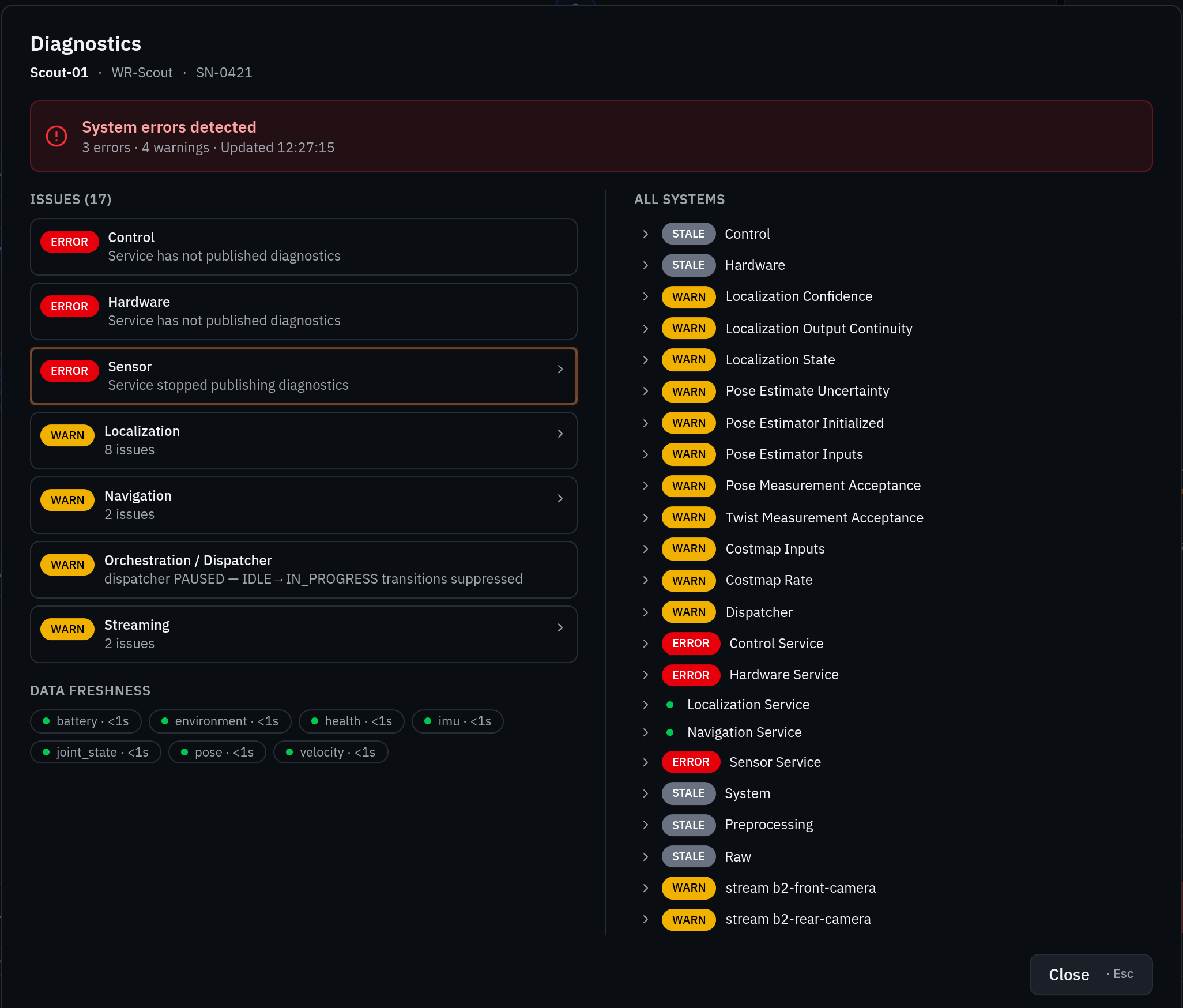
It opens on a one-line verdict — how many errors and warnings the robot is reporting, and when that was last updated — and then three regions, meant to be read in order:
| Region | What it is for |
|---|---|
| Issues | Only what is wrong, grouped by subsystem with a count. The triage list — start here |
| Data freshness | Each telemetry signal with its age, so you can see what is still arriving |
| All systems | Every subsystem, healthy ones included, as an expandable tree |
Each subsystem carries one of four statuses:
| Status | Means |
|---|---|
| OK | Reporting, and healthy |
| WARN | Reporting, with something worth attention |
| ERROR | Reporting a fault |
| STALE | Not reporting recently enough to be trusted |
ERROR and STALE are different problems. A subsystem reporting a fault has told you something is wrong; a stale one has stopped telling you anything, and its last known state may be long out of date. The freshness panel is what tells the two apart, and they need different responses — one is a fault to act on, the other is a service to get reporting again.
The control carries its own indicator, so trouble is visible without opening it — amber for a warning, red for an error or a stale subsystem. On a robot that has not reported a diagnostics tree, the control is unavailable.
The view is headed with the robot's name, model and serial number. Quote those when raising a fault with us.
Taking control
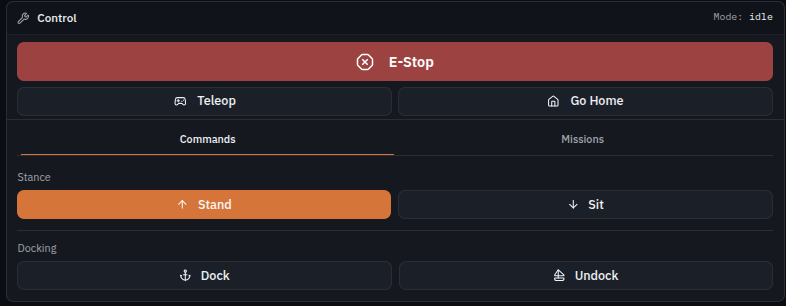
| Control | What it does |
|---|---|
| Emergency stop | Stops the robot. While it is engaged, the other controls on the card are unavailable |
| Teleoperation | Drive the robot yourself, from the browser |
| Go Home | Send the robot back to its home position. Where no home has been set the same control reads Set Home instead, because with nowhere to drive to Go Home could only fail |
| Commands | Docking — dock and undock — and posture commands such as stand and sit |
| Missions | Pick a mission this robot may run, and dispatch it |
Control is held under a lease, so a second operator cannot take the controls until the one held is released.
Pressing Teleop starts a driving session in the main view area. Driving itself — keyboard and gamepad control, key mapping and axis inversion, speed and deadzone, arranging the camera views, and audio — is covered on Robot teleoperation.
Drive commands depend on the robot being on the map the fleet has activated. A robot that is behind has its dispatch and Go Home controls withdrawn until it catches up — see Catching a robot up to the map.
Auto-dispatch
Scheduled missions start on their own, and the auto-dispatch control on the Missions tab is what governs that. Pausing it is how you stop a robot picking up new work without cancelling what it is already doing: pausing blocks new missions being admitted and leaves a run already under way alone.
Nothing starts by itself again until Resume Auto-Dispatch, so a robot paused and forgotten is a robot that quietly runs nothing. Where it is paused, the control shows why.
A robot that is not reporting its dispatcher state shows the control unavailable rather than hiding it — an absent button means the robot is not reporting, not that it lacks the feature.
What happens during a mission
Battery level and the connection to the fleet both change what a running mission does.
- Not enough battery — the robot refuses to start a mission, and interrupts its schedule if the level becomes critical.
- The connection to the fleet drops mid-mission — what the robot does next is set by its disconnect policy:
stop_safe, which brings it to a controlled stop, orcontinue_mission, which carries on with the mission it holds. A custom behaviour can be fitted where a site needs something else. The default isstop_safe.
Two separate things are at work in that second case, and it is worth keeping them apart. Navigation runs on the robot itself, from the map it already holds, so completing a mission out of contact is a real capability rather than a hopeful one — which is what makes continue_mission a genuine option rather than a gamble. The policy still decides what happens, so a robot perfectly capable of continuing will stop if stop_safe is what it is set to.
The policy lives on the robot, not in the dashboard. It is applied when Weston Robot commissions the robot, and changing it needs the same access as any other onboard change — see Software updates. The right answer differs between a warehouse aisle and an open yard, so it is worth settling at the site survey rather than after the first outage.
Messages are buffered on the robot while the link is down, so telemetry and events from that period arrive once it returns. What is genuinely unavailable in the meantime is the live view and the ability to send a command.
Common questions
Can two people drive the same robot?
No. Control is held under a lease, and only one person holds it at a time.
The camera panel is empty
The robot is not connected. Feeds are live, so there is nothing to show for a robot that is not reporting in. Check the heartbeat reading in telemetry.
Why did teleoperation stop on its own?
Teleoperation stops the robot when the connection to the fleet degrades. That is deliberate — driving a robot you cannot see is worse than stopping it.
The dispatch and Go Home controls are unavailable
Either the emergency stop is engaged, or the robot is behind the map the fleet has activated. The second is the more common; catching it up restores them.