Mission editing and dispatch
A mission answers three questions about a piece of work: what the robot should do, where it should do it, and when that should happen. Missions are built in the browser, kept in a library with a revision history, and sent to the robots that will run them.
The model
Where — checkpoints. A checkpoint is more than a pose to drive to. It is a place the mission attaches meaning to: the robot travels there, turns to the heading you set, and then does whatever that checkpoint says it should. The position and heading are how it arrives; what the checkpoint carries is why it went.
What — actions on arrival. Each checkpoint holds its own list of actions, performed once the robot is there:
| Action | What the robot does |
|---|---|
| Pause | Holds position for a set number of seconds |
| Announce | Plays an audio clip, chosen from the sounds that robot carries rather than typed in |
A checkpoint with no actions is somewhere the robot passes through. A checkpoint with them is somewhere it stops and does something — and that is the difference between a route and a mission.
When — run conditions. Whether the mission can start on its own at all, covered in Run conditions below. A mission saves without one, but cannot be activated or sent until it has one.
Two kinds of mission use this same shape. A patrol is a route the robot works repeatedly; an errand is an ad-hoc move from one place to another. Both are ordered checkpoints with actions attached — what differs is whether the work is meant to persist.
The editor
The Mission Editor opens on a named robot and works against that robot's site map. It runs in three numbered stages.
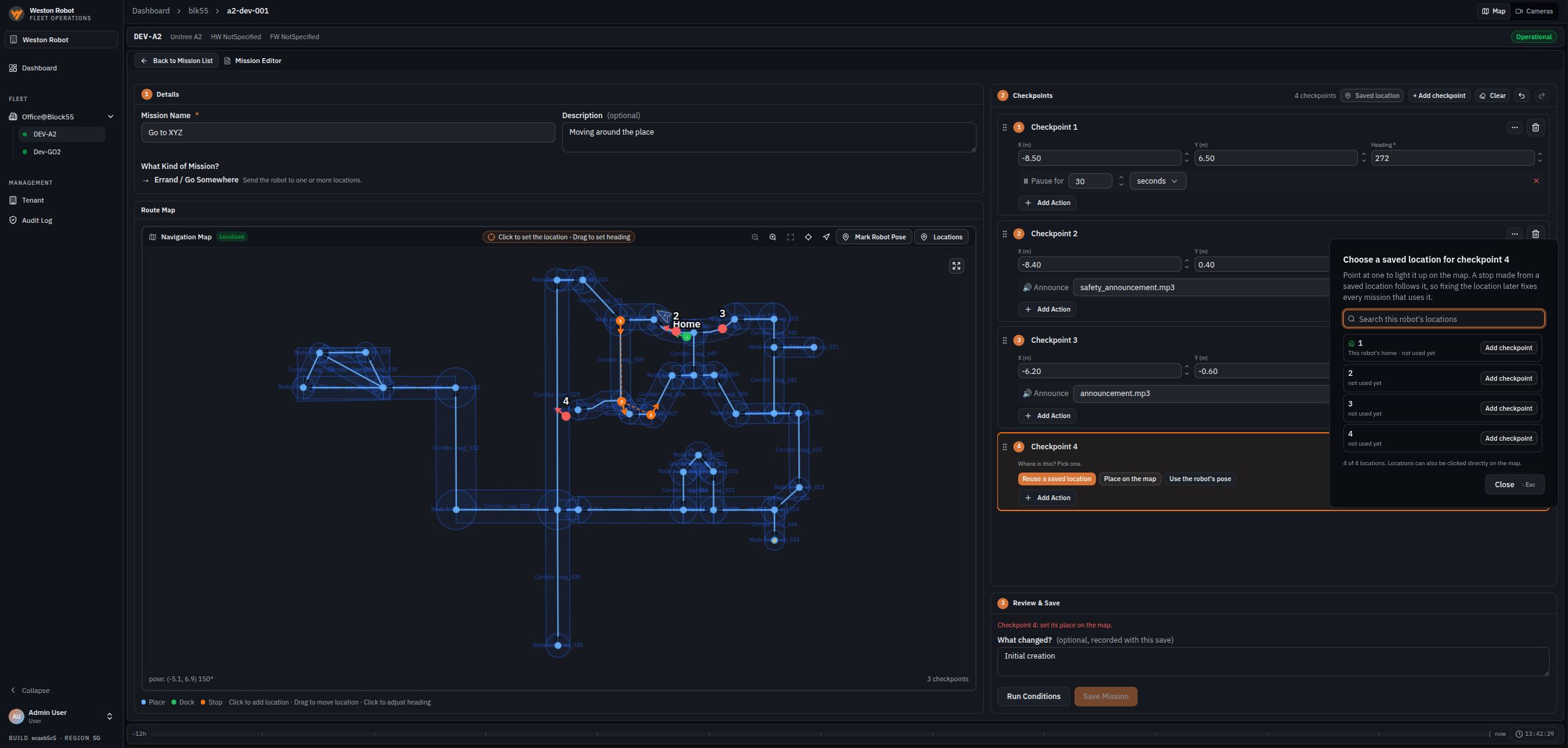
The recording below builds a two-checkpoint patrol from an empty editor through to saving it, so the three stages can be seen as one continuous piece of work. The sections that follow are the reference for each stage.
1 · Details
The mission's name is required and a description is optional. This is also where you choose whether it is a patrol or an errand.
2 · Checkpoints
Checkpoints are an ordered list. Each carries a position as X and Y in metres and a heading in degrees, which is required — a robot that arrives facing the wrong way has not really arrived, and a camera pointed at the wrong wall inspects nothing.

Drag to reorder; undo, redo and clear apply across the whole list. There are three ways to say where a checkpoint is:
| Method | Use it when |
|---|---|
| Reuse a saved location | The place already has a name — see Saved locations |
| Place on the map | Click the route map to set the position, then drag to set the heading |
| Use the robot's pose | The robot is already standing where you want the checkpoint |
Actions are added per checkpoint, and a checkpoint can carry more than one.
The route map draws the mission over the site map, numbering the checkpoints in order and distinguishing places, docks and stops, so the sequence can be checked against the building rather than against a list of coordinates.
3 · Review & Save
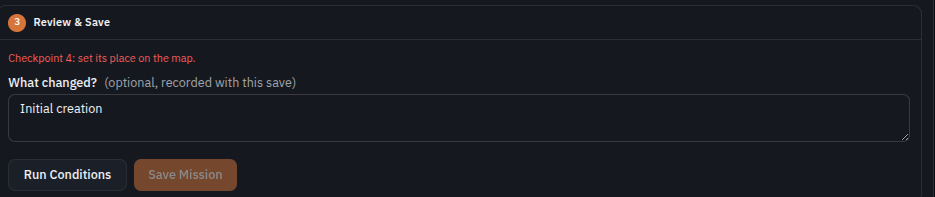
Saving validates first. A checkpoint with no position is named by number and blocks the save until it is set.
Where Save Mission is unavailable, the reason is above it rather than on it. The button does not currently say what is missing, and the most common answer is the simplest one — the mission has no name. Read the validation messages at the top of this stage, and check the name in Details, before looking for anything harder.
Two things here are worth knowing:
- A "what changed?" note is recorded with the save. It is optional, and it is what makes the revision history readable later rather than a list of timestamps.
- Run conditions are set separately from saving. A mission saves without one; it cannot be activated or sent until it has one.
Saved locations
A saved location is a named place on a robot's map. A checkpoint made from one follows it, so correcting the location later corrects every mission in the Management Toolbox that uses it — which is what keeps a growing library maintainable rather than turning one moved shelf into an afternoon of edits.
A robot that already holds the mission is the exception. A checkpoint's pose, and the home a patrol returns to, are resolved at the moment you Send to Robot — so moving either does not by itself change anything on a robot that was sent the mission earlier, and an armed patrol goes on driving to the pose it was given until that mission reaches it again. Missions hold those places by reference rather than by copy, so whenever an already-held mission is next sent out its checkpoints and its home are resolved to where they stand then — Send to Robot is how you make that happen when you want the robot updated now. Each mission in that state is badged location changed in the mission list, and one Send to Robot clears it. The badge is shown for an offline robot too, because that is exactly when a stale copy keeps running to its own schedule. A mission you have also edited since sending reports that edit instead — one Send answers either cause.
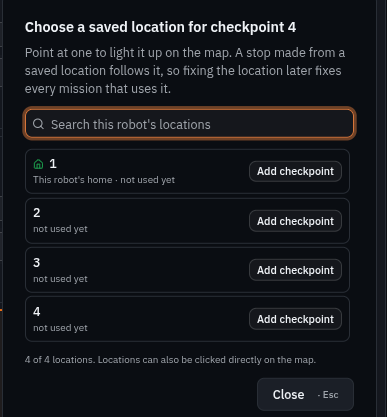
Locations are held per robot, are searchable, and can be picked from the list or clicked directly on the map. A checkpoint you placed by hand can also be saved as one, which is what turns a one-off stop into a place the next mission can reuse.
Correcting a location is the normal way to fix a place that has moved, and in the Management Toolbox it does what it says — every mission that uses it follows it. One limit sits around that.
A move is not checked the way a save is. Saving at an occupied spot is refused, as One location per place below describes. Moving an existing location on top of another is not checked the same way, so a move can leave two locations at one spot. Nothing is lost and either still works.
One location per place. Saving a new location at a spot a location already occupies — the same position, facing the same way — is refused, and the refusal names the one already standing there so you can use it instead. This holds wherever you save from, so the map's own Add Location and a checkpoint's Save as location are refused alike. The two doors differ in what they do next: saving a checkpoint as a location always asks whether it should Merge into the location or Keep separate, while Add Location on the map simply reuses the location already there and tells you so.
Run conditions
Run conditions answer "when should it run?". A run condition is what lets a mission start on its own, and it is the gate on activating and sending a mission rather than on saving one.
Which conditions you are offered depends on the mission. A patrol repeats by definition; an errand asks whether it should.
A patrol is offered three:
| Condition | Behaviour |
|---|---|
| Every Hour | Once an hour, at a chosen minute past |
| Everyday | Once a day, at an hour and minute |
| On Chosen Days | On selected weekdays, at an hour and minute |
An errand carries a Does it repeat? choice — Runs once or Repeats — and the conditions change with it. Set to Runs once:
| Condition | Behaviour |
|---|---|
| As Soon as It Is Sent | Starts at the first opportunity |
| At a Time of Day | At an hour and minute |
| On One of These Days | Waits for one of the chosen weekdays, then goes |
Switch it to Repeats and it takes the same three a patrol has. As Soon as It Is Sent is then withheld, and the editor says why: a mission that repeats and starts as soon as it is sent has nothing limiting how often it runs, so it would begin again the moment it finished. Give it a time instead.
A mission with no condition cannot be activated or sent. The editor states this where the condition would go — no run condition set — this mission cannot be activated or sent until you pick one. It does not mean the mission is unusable: it means nothing will start it by itself.
Running a mission by hand is not a run condition. A saved mission can be handed to a robot on demand with Dispatch, on the Missions tab of the robot's own view, whether or not it has a condition. What a condition adds is the robot starting the work without anyone asking. The two are separate questions, and a mission with no condition simply never answers the second one.
Two further properties explain most of what surprises people:
A time carries its own cooldown. The window you set is how late a start is still acceptable, and it doubles as the interval before the same trigger may fire again — which is what makes "every day at 09:00" safe on a mission that never finishes on its own. A day-of-week rule has no such guard, which is why days are always paired with a time rather than offered alone.
Some limits are shown rather than set. Where a mission carries a minimum charge, the run conditions panel reports it — won't start below 20% battery, or whatever figure applies. The number comes from the mission's own parameters as the robot's template supplied them; the editor displays it and does not offer it as a choice.
Times are the robot's local time, not the browser's.
Sending missions to a robot
Authoring a mission does not put it on a robot. Missions are sent to the robot that will run them, and a badge answers the question that follows: does the robot actually have these?
Activating a mission and sending it are separate steps. Activation decides whether a mission is eligible to run — it is how you enable a schedule, and how you stop it starting again without deleting it. Send to Robot is the deliberate operation that puts a saved mission on a robot and updates a copy the robot already holds to the version you have saved. A mission can therefore be Active without being On Robot, and the robot will not run it until it has been sent. Turning a mission off changes whether it is eligible to run; it does not itself remove a copy the robot already holds. What confirms any of this is the robot's own report, so active is the Management Toolbox's intent and the badge beside it is the robot's answer: read the badge, not the activation, when you want to know what the robot has.
| Badge | Means |
|---|---|
| robot confirmed | The robot accepted this mission list when it was sent |
| robot holds no missions | Nothing in your mission list is on the robot |
| nothing sent yet | No missions have been sent to this robot yet |
| waiting for the robot | Sent — the robot has not confirmed yet |
| waiting for the run to end | A mission is still running; this clears itself when it ends |
| robot refused | The robot refused the last push, and says why where it gave a reason |
| robot offline | The robot is offline, so nothing can be confirmed |
| not confirmed | The robot has not confirmed what it holds |
A badge may also carry · needs review after it. That is a separate signal appended to whichever badge applies, not a badge of its own: the map underneath has moved — a new map revision was rolled out, or a waypoint one of the missions uses was edited or deleted — so what the robot holds needs checking against the map now activated. A moved saved location is a different signal, reported on the mission itself; see Saved locations.
not confirmed is what a mission shows when the system holds no evidence either way. On a system upgraded from an earlier release it is the starting state for missions that were already there, so a set of them reading not confirmed immediately after an upgrade is expected rather than a fault; sending again replaces it with an answer. A fresh installation does not normally produce it.
To dispatch a mission is to hand it to a named robot to run now. A robot can also be sent somewhere once, with no mission at all. Both are transient work rather than something the robot keeps — see Quick Dispatch below.
Missions reference the site map, so a robot must be on the map the fleet has activated before its missions can be edited or dispatched. Catching a robot up to the map covers what to do when it is not.
Quick Dispatch
Quick Dispatch is transient, one-off work: one press, one drive, and the robot is finished with it. Use it for something you will not want again.
There are two ways in, and both create the same transient one-off work — neither puts the source mission on the robot:
- Quick Dispatch on the map toolbar of the robot's own view, to send the robot to a point you pick, with no mission at all.
- Dispatch on the Missions tab, to run a saved mission once, on demand — described under Run conditions as the thing that is not a run condition.
Dispatching a saved mission this way is the same transient behaviour, not a lighter form of sending it. Everything below applies to both.
Either way it is deliberately kept apart from what a robot holds, and the distinction is worth knowing before you rely on it:
- It is not a Send. Running a saved mission once does not put that mission on the robot: the badge on the mission list still tells you whether the robot has it.
- It is not a delivery. An errand is not how saved missions reach a robot; Send to Robot is.
- It does not displace resident work. The errand runs alongside a scheduled mission the robot already holds, not instead of it.
- It clears itself. When the robot reports the errand finished or failed, it is taken off the robot without anyone pressing anything.
- It pauses the schedule until you acknowledge it. New work is held back until you close the result — see Recovery and acknowledgement.
- Pressing it again replaces an errand the robot has not started. Once the robot has actually taken the errand up, stopping it is a separate, deliberate act rather than a side effect of dispatching again.
When an action cannot proceed
The Management Toolbox refuses an action when it does not have enough information to proceed safely, or when the result would be invalid or in conflict with something that already exists. Four come up in normal use, each with a different thing to do about it.
[1], [3] and [4] are reported on screen. [2] is quieter — what you see is that auto-dispatch has gone paused.
| Ref | Refusal | What it means | What to do |
|---|---|---|---|
| [1] | The fleet cannot tell what this robot is holding | The robot has not reported its own mission list recently enough to be trusted. Not knowing is not the same as knowing it is empty, and the Management Toolbox will not treat it as empty | Wait for the robot to report, or bring it back online, then repeat the action. Nothing has been changed on the robot |
| [2] | The removal was withheld, and auto-dispatch is paused | You asked for work to be taken off a robot whose current list cannot be seen. Sending a corrected list would mean guessing the rest of it, so nothing was sent and new work was paused instead, to stop the robot picking up something you were trying to remove | Wait until the robot reports again, repeat the removal, then Resume Auto-Dispatch |
| [3] | A saved location already stands here | The place you are saving is the same spot, facing the same way, as a location that already exists — and the refusal names the one already there | Use the location it names instead of saving a second one at the same place |
| [4] | A place this mission needs cannot be resolved | The mission refers to a home position or a checkpoint that no longer exists, or that cannot be resolved on the robot's current map. The mission is invalid to send at all, so this is answered before anything about schedules or holds | Open the mission and set the missing place, then send it again |
[3] and [4] are about the mission or its saved places, so they are answered first: a mission that cannot be dispatched at all is never reported as merely waiting.
History and logs
Three separate records answer three different questions, and none of them can be edited.
| Record | Answers |
|---|---|
| Run history | What actually ran, and how it ended |
| Mission changes | Who created, edited, deleted, activated, deactivated or ran a mission |
| Revisions | What a mission used to contain, and what one save changed |
Run history exists because the robot's own answer does not survive. A finished run's outcome lasts only a few seconds in the robot's report before the next arming clears it, so without a record there is no moment at which anyone could ask "did the 09:00 patrol finish?" and be answered.
Mission changes are the only place you can see that someone else changed a mission — that a patrol was deactivated, or deleted, and by whom. They come from the same operational audit trail as everything else.
Revisions can be compared side by side. A version number and the author's note say a save happened; the comparison says what actually moved. That matters when the decision is whether to restore, because restoring puts a robot back on an older route.
Common questions
The mission saved but will not activate
Check its run conditions. A mission saves without one, but activating or sending it is refused until it has one. It can still be dispatched by hand in the meantime.
Why can I not use a day of the week on its own?
A day rule has no cooldown of its own, so a mission that does not end by itself would restart all day. Pairing it with a time gives it one.
A robot's missions are switched off and I cannot edit or dispatch them
That robot is on an older map than the one the fleet has activated. See Catching a robot up to the map.
I moved a location and several missions changed
Expected, if it was a saved location. In the Management Toolbox, checkpoints that reference that saved location are updated together. A robot already holding one of those missions keeps the position it was previously given until that mission is sent to it again — Send to Robot is the deliberate way to do that — and each mission in that state is badged location changed — see Saved locations.
Did last night's patrol actually run?
Run history, which records how each run ended. The robot's own report does not keep it.