Robot dashboard
One robot on one screen. The view is laid out so that judging a running mission needs no switching between tabs: where the robot is, what it can see, what it is doing, how it is holding up, and the controls to intervene are all present at once.
The panels
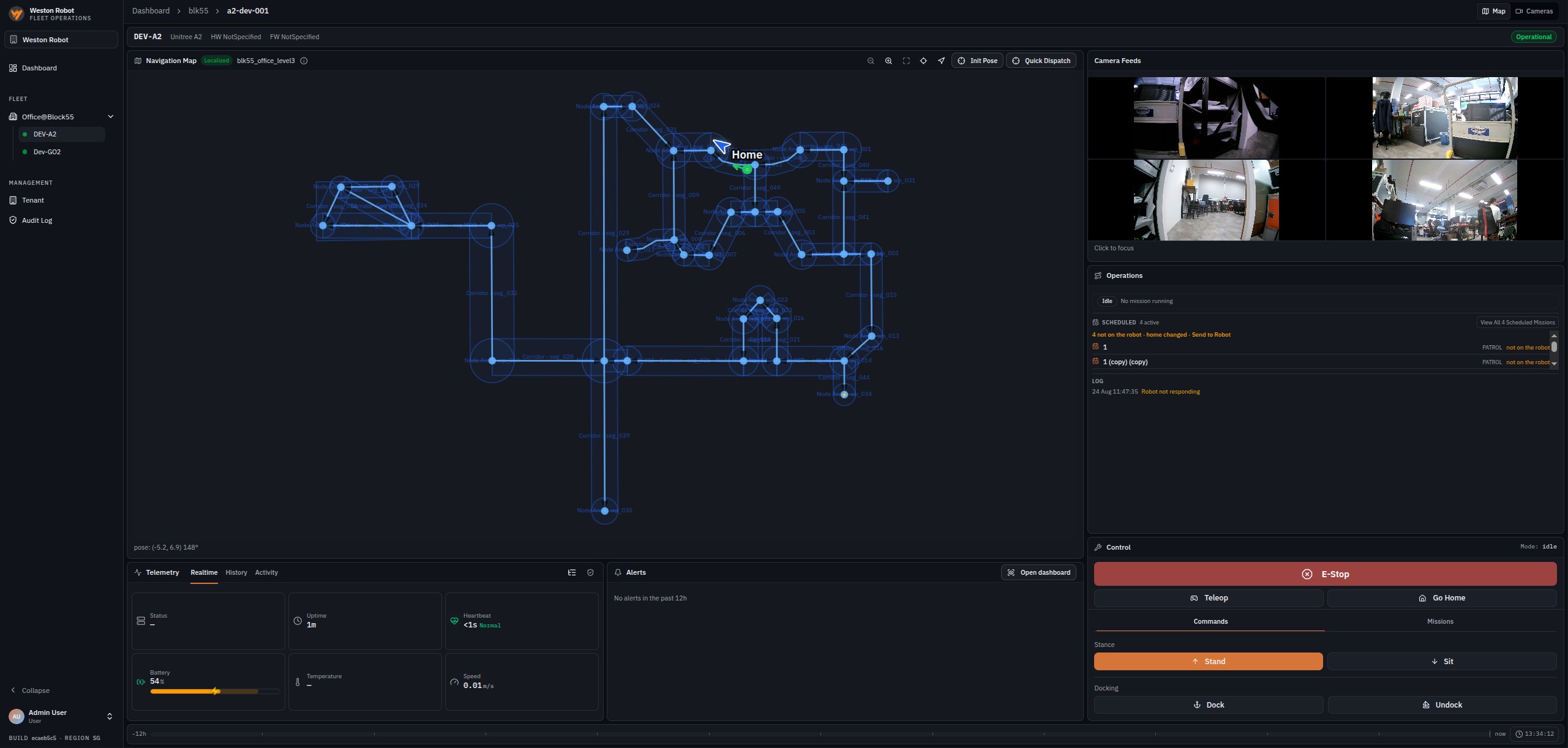
| Panel | What it carries |
|---|---|
| Navigation map | The site map with the robot's position and heading drawn on it, the map revision in use, and whether the robot is localised — that is, whether it knows where it is on that map. Quick Dispatch and pose controls sit on its toolbar |
| Camera feeds | Live feeds from the robot's cameras, each labelled, any of which can be brought into focus |
| Operations | The mission running now, how many are scheduled, and a running log of what the robot has reported |
| Telemetry | The readings the robot makes about itself — see below |
| Alerts | What has been raised for this robot over a window set on the Settings page — 12 hours by default, or 1, 6, 24 or 48. The durable record is in Detection review |
| Control | The robot's current mode, and the controls to intervene |
The main view area shows one or the other. A Map / Cameras toggle decides whether the navigation map or the camera feeds take the large panel, with the other moving aside. An operator watching a robot drive can give the space to the feeds; one checking progress against the building can give it to the map. Which of the two opens by default is a per-user preference.
Localisation is worth watching. A robot that is not localised does not know where it is on the map, so map-relative work — dispatching a mission, sending it home — has nothing to work from until it does. The map reports it beside the robot: Localized when it is tracking, Not Localized when it has no fix, and Unknown when the robot has not said recently enough to be trusted.
Not Localized is a status rather than a fault. It can appear when the robot does not yet have a valid localisation on the current map, and map-relative controls may be unavailable until localisation succeeds. Localisation or navigation warnings caused by a robot not being localised should clear once it localises.
Init Pose, on the map toolbar, is the recovery for a robot that is not tracking. Arm it, then click to set the location and drag to set the heading — releasing sends it, and the robot starts localising from the pose you gave. There is no separate confirm step and nothing further to press: watch the reading beside the robot for Localized. Init Pose remains available while location confirmation is outstanding. If the robot is on an out-of-date map revision, however, Init Pose remains unavailable until the map is brought up to date.
Two things make it more likely to take. Put the pose where the robot physically is, as closely as you can judge — near enough in the right place is what it needs rather than an exact figure. And have the robot somewhere with clear, distinctive surroundings rather than a repetitive or bare one, because an aisle of identical bays gives it little to tell one position from another.
Arranging the view
What the camera panel shows takes two separate decisions: which of the robot's streams are running, and how the panes are arranged. Both are set from the controls along the top of the panel, which appear when the camera feeds hold the main view area — switch Map / Cameras to Cameras if they are currently in the small one.
Which streams are running
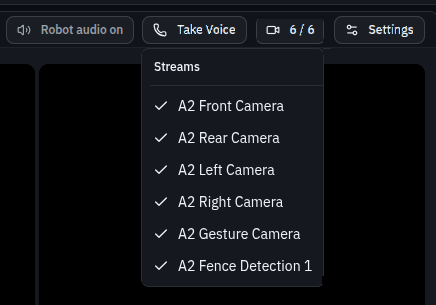
The camera control counts the streams running against the streams the robot offers — 6 / 6 when every one of them is up. Opening it lists them by name, and ticking one starts it. The same set appears as Enabled Streams in Stream Settings, with each stream's type beside it.
Ticking a stream asks the robot to start sending that camera. It is not a filter over feeds already arriving, which is why a pane can be assigned correctly and still show nothing: a pane whose stream is not running reads Waiting for stream… instead. When a layout you have just set looks empty, check this count before changing the layout: assigning a pane starts nothing.
Streams are not restored when you come back. A session opens with none of them running, and the ones you started are stopped when you leave the robot, so the panes fill as you turn feeds on rather than arriving populated. The arrangement around them is remembered.
How the panes are arranged
Stream Settings, from the same row of controls, holds the arrangement, and it is remembered per robot.
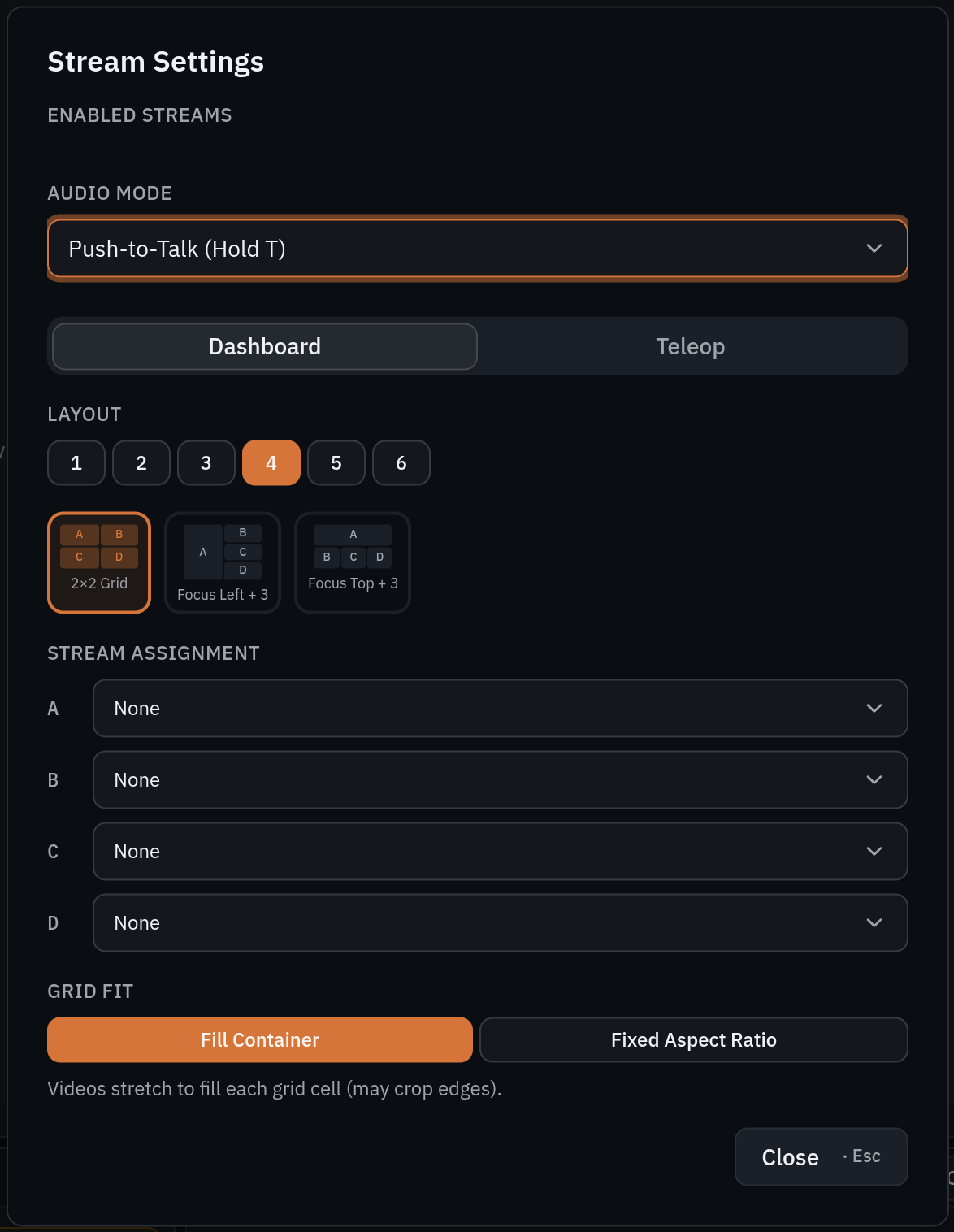
Layout is chosen in two steps — first how many panes you want, from one to six, then which arrangement of that many. Four panes offers a 2×2 grid, one large pane with three small, or one across the top with three beneath; the thumbnails show each. Stream assignment then puts a named camera in each lettered slot.
| Setting | Options |
|---|---|
| Layout | One to six panes, and from two panes up, several arrangements of each |
| Stream assignment | Which camera goes in each lettered slot |
| Grid fit | Fill container, which uses every pixel and may crop edges, or fixed aspect ratio, which keeps the whole frame |
| Primary stream | The feed that fills the screen while driving |
| Picture-in-picture | A stream pinned to a corner — top or bottom, left, centre or right — or switched off |
| Visible in teleop | Which cameras appear while driving, which can be a smaller set than the dashboard shows |
Dashboard and teleop keep separate layouts, on their own tabs, so the arrangement you want while monitoring need not be the one you want while driving. The dashboard tab holds the pane layout and the grid fit; the teleop tab holds the primary stream and what is pinned around it.
Grid fit is the choice worth deliberate thought: filling the pane uses every pixel but crops the edges, and fixed aspect keeps the whole frame at the cost of letterboxing. For judging clearance beside a robot, seeing the whole frame usually matters more than filling the screen.
Audio
Audio has two halves, and they are separate controls: hearing the robot, and speaking through it.
Hearing it is the audio button on the camera panel — Robot audio on while it is live, Robot audio muted while it is not. Where the browser has not yet been allowed to play audio the same button reads Click to enable audio, and pressing it both unlocks playback and unmutes. It is an on-or-off control rather than a level: how loud the robot is comes from the computer's own volume.
Speaking through it is claimed the way the robot's controls are — one person at a time. Take Voice takes the channel, and while you hold it the control offers the microphone and a button to release it. Anyone else sees Voice: and the name of whoever holds it, and a Site Admin can Revoke a channel left held by someone who has gone.
The voice channel is independent of the robot's controls. Taking it does not take the robot, so an operator can speak to whoever is near a machine without touching anything that moves it — and someone else driving does not stop you. Taking the channel is an Operator action; an Observer cannot.
Speaking is push-to-talk by default: hold to speak, release to stop — T on the keyboard, or the gamepad button bound to it while driving. Always on, set from Audio Mode in Stream Settings, leaves the microphone live and gives you a mute button instead. That suits an operator who needs both hands and does not suit a shared control room, where it carries whatever else is being said in the room to whoever is standing near the robot.
Telemetry
Telemetry answers "is this robot all right?" and is presented three ways: realtime for what is true now, history for how a reading has moved, and activity for what the robot has been doing.
| Reading | Tells you |
|---|---|
| Battery | Charge remaining — the figure that decides whether a mission can start |
| Heartbeat | How recently the robot reported in. A healthy heartbeat is sub-second; a stale one is the first sign of a link problem |
| Uptime | How long the robot has been running since it last started |
| Temperature | Thermal state |
| Speed | How fast it is moving now |
| Status | Operational, non-responsive or faulty — the same status the fleet overview counts |
When a robot reads as offline
The robot sends a lifecycle heartbeat about every 30 seconds, and how recently one arrived is what decides whether it counts as reporting:
| Since the last heartbeat | Reads as |
|---|---|
| Under 45 seconds | Normal |
| 45 seconds or more | Stale — a beat has been missed |
| 90 seconds or more | Lost — three beats missed |
Telemetry is graded separately from the heartbeat. The robot's status signal publishes about every two seconds, so 30 seconds of silence is taken as data having stopped flowing altogether. Individual readings also age out on their own after 90 seconds, which is what stops a panel presenting a stale figure as though it were current while other signals keep arriving.
Two channels are graded independently, and they can disagree. A robot can be operational on the data plane — driving, reporting telemetry — while its on-robot management agent is offline. That combination matters when it happens, because updating a robot's credentials remotely depends on the management channel rather than the data one.
Diagnostics
Telemetry says whether a robot is healthy. Diagnostics says what is unhealthy, and it opens from the telemetry panel.
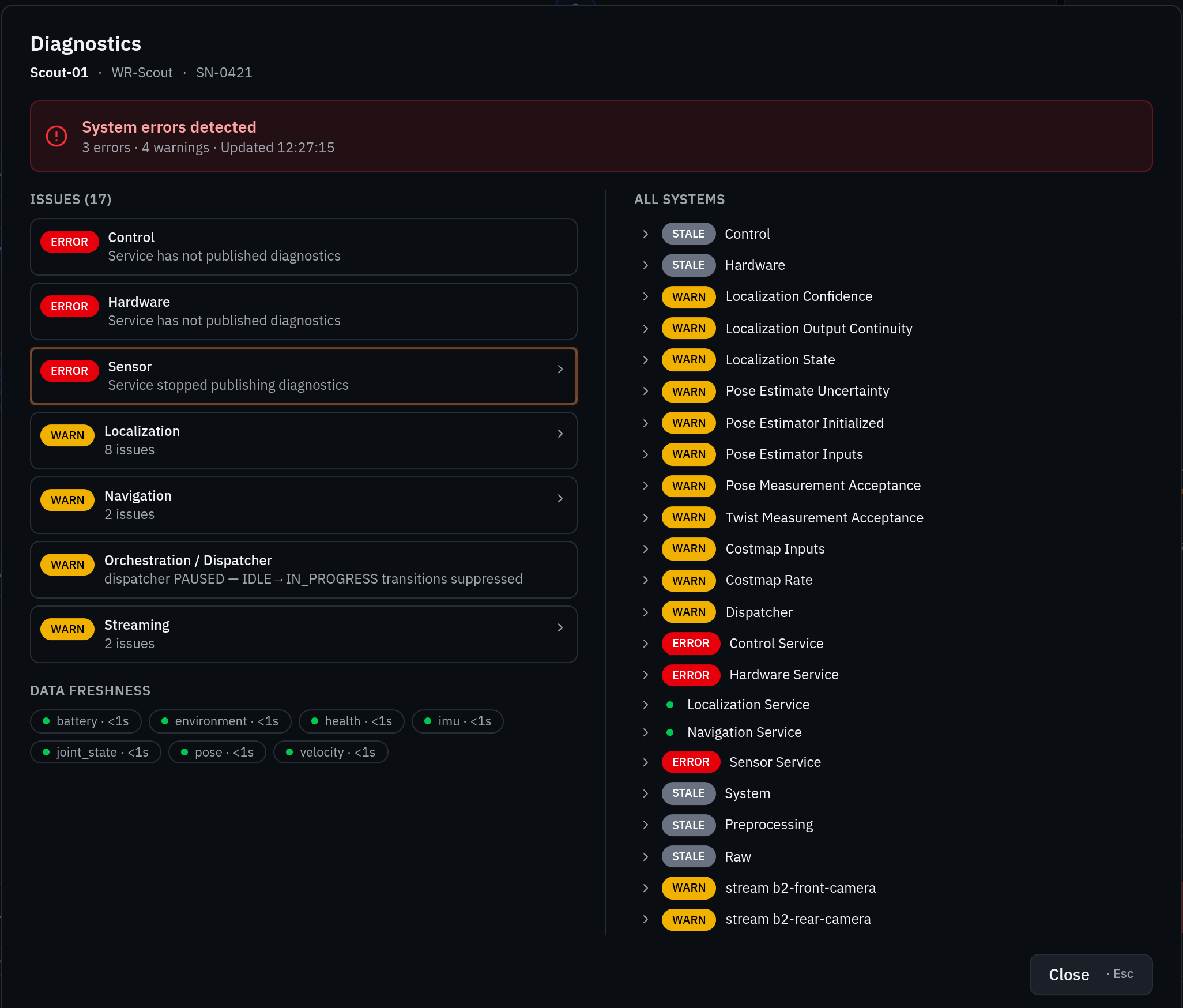
It opens on a one-line verdict — how many errors and warnings the robot is reporting, and when that was last updated — and then three regions, meant to be read in order:
| Region | What it is for |
|---|---|
| Issues | Only what is wrong, grouped by subsystem with a count. The triage list — start here |
| Data freshness | Each telemetry signal with its age, so you can see what is still arriving |
| All systems | Every subsystem, healthy ones included, as an expandable tree |
Each subsystem carries one of four statuses:
| Status | Means |
|---|---|
| OK | Reporting, and healthy |
| WARN | Reporting, with something worth attention |
| ERROR | Reporting a fault |
| STALE | Not reporting recently enough to be trusted |
ERROR and STALE are different problems. A subsystem reporting a fault has told you something is wrong; a stale one has stopped telling you anything, and its last known state may be long out of date. The freshness panel is what tells the two apart, and they need different responses — one is a fault to act on, the other is a service to get reporting again.
The control carries its own indicator, so trouble is visible without opening it — amber for a warning, red for an error or a stale subsystem. On a robot that has not reported a diagnostics tree, the control is unavailable.
The view is headed with the robot's name, model and serial number. Quote those when raising a fault with us.
Taking control
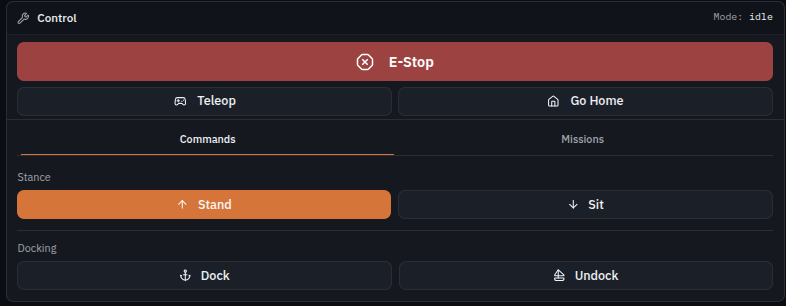
| Control | What it does |
|---|---|
| E-Stop | Stops the robot. While it is active the panel reads E-STOP ACTIVE and offers Reset E-Stop, which is how it is released |
| Teleoperation | Drive the robot yourself, from the browser |
| Go Home | Send the robot back to its home position. Where no home has been set the same control reads Set Home instead, because with nowhere to drive to Go Home could only fail |
| Commands | Docking — dock and undock — and posture commands such as stand and sit |
| Missions | Pick a mission this robot may run, and dispatch it |
After Go Home, trust the robot rather than the panel. The robot begins driving home when the command is accepted, but the panel can go on reporting that the work is staged and not moving yet. The press took; the message is behind it. Watch the robot's position rather than pressing Go Home a second time.
What the E-Stop withdraws is the ability to set the robot going, not the ability to stop it. While it is active, the controls that would start movement or take on new work are unavailable — driving, Go Home, the stance and docking commands, dispatching a mission, and auto-dispatch. The controls for dealing with what is already running stay available, so a run in progress can still be paused, resumed or stopped, a result acknowledged, and the robot cleared. Releasing the E-Stop is a deliberate second action rather than a side effect of anything else.
Every role at a site may activate the E-Stop, and it needs no control lease. Safety is not something to hold a lease for, so an Observer — who can command nothing else here — can still stop a robot. Releasing it is an Operator action: Reset E-Stop is not open to every role, so an Observer who stops a robot needs an Operator to reset it. Roles defines every role and its scope.
Every other control on this panel is held under a lease — an exclusive claim on that robot — so only one person commands it at a time, and a second operator cannot take the controls until the lease is released. There is no ambiguity about who is responsible for a moving robot.
Pressing Teleop starts a driving session in the main view area. Driving itself — keyboard and gamepad control, key mapping and axis inversion, speed and deadzone — is covered on Robot teleoperation.
Drive commands depend on the robot being on the map the fleet has activated. A robot that is behind has its dispatch and Go Home controls withdrawn until it catches up — see Catching a robot up to the map.
Auto-dispatch
Scheduled missions start on their own, and the auto-dispatch control on the Missions tab is what governs that. Pausing it is how you stop a robot picking up new work without cancelling what it is already doing: pausing blocks new missions being admitted and leaves a run already under way alone.
Nothing starts by itself again until Resume Auto-Dispatch, so a robot paused and forgotten is a robot that quietly runs nothing. Where it is paused, the control shows why.
A robot that is not reporting its dispatcher state shows the control unavailable rather than hiding it — an absent button means the robot is not reporting, not that it lacks the feature.
Recovery and acknowledgement
A run that ends badly leaves something to settle, and the Management Toolbox keeps it in your way rather than clearing it quietly. On the control panel's Missions tab, the dispatch control is replaced by Acknowledge "…" to continue — the run's own name, and failed when it failed.
That replacement is the point: until you acknowledge it, you cannot dispatch anything else to that robot. A result nobody looked at is the one that repeats, so you are asked to close it before the robot will take new work. Acknowledging is not an admission of anything; it is you saying you have seen the outcome.
A robot that fails a run usually stops taking new work at the same time. Acknowledging can lift that pause for you, but only where the pause can be established as belonging to that run — so it is not something to count on. A scheduled mission's failure never resumes the schedule by itself: a schedule that restarts after failing is a schedule that fails all night.
When the pause came from somewhere else — an operator paused it, a map update paused it, the robot's work was cleared — it is left alone, and auto-dispatch simply stays paused. Lifting a hold someone else put on deliberately would be worse than leaving yours in place, so the way back is the Resume Auto-Dispatch control rather than the acknowledgement.
Resume Auto-Dispatch is the way back whatever paused the robot, and it is never withheld because an automatic resume was declined. Like anything else that lets work start, it needs the robot's controls and a settled map, and it is unavailable while the E-Stop is active. If a robot is idle when you expected it to be working, that control is the first thing to check.
What happens during a mission
Battery level and the connection to the fleet both change what a running mission does.
- Not enough battery — the robot refuses to start a mission, and interrupts its schedule if the level becomes critical.
- The connection to the fleet drops mid-mission — what the robot does next is decided on the robot, not from this dashboard.
Navigation runs on the robot itself, from the map it already holds, so the link to the fleet is not what keeps a robot navigating. What a robot does when that link drops is set on the robot when Weston Robot commissions it, and changing it needs the same access as any other onboard change — see Software updates. The right answer differs between a warehouse aisle and an open yard, so it is worth settling at the site survey rather than after the first outage; ask us what your robots are set to do.
Messages are buffered on the robot while the link is down, so telemetry and events from that period arrive once it returns. What is genuinely unavailable in the meantime is the live view and the ability to send a command.
Unexpected errors
If the toolbox or robot reports an unexpected error after the normal prerequisites have been satisfied, power the robot off and on once. This may clear a temporary fault. If the problem remains after the restart, contact Weston Robot support.
Common questions
Can two people drive the same robot?
No. Control is held under a lease, and only one person holds it at a time.
The camera panel is empty
Check the stream count first, since a session starts with nothing running and an empty panel may simply be a panel with no feeds turned on. If streams are running and the panes are still empty, the robot is not connected — feeds are live, so there is nothing to show for a robot that is not reporting in, and the heartbeat reading in telemetry will say so.
I set a layout and the panes are still empty
A pane shows its camera only while that stream is running, and setting the layout does not start anything. Open the stream count beside Settings and tick the cameras you want — see Which streams are running.
Why did teleoperation stop on its own?
Teleoperation stops the robot when the connection to the fleet degrades. That is deliberate — driving a robot you cannot see is worse than stopping it.
The dispatch and Go Home controls are unavailable
Either the emergency stop is engaged, or the robot is behind the map the fleet has activated. The second is the more common; catching it up restores them.